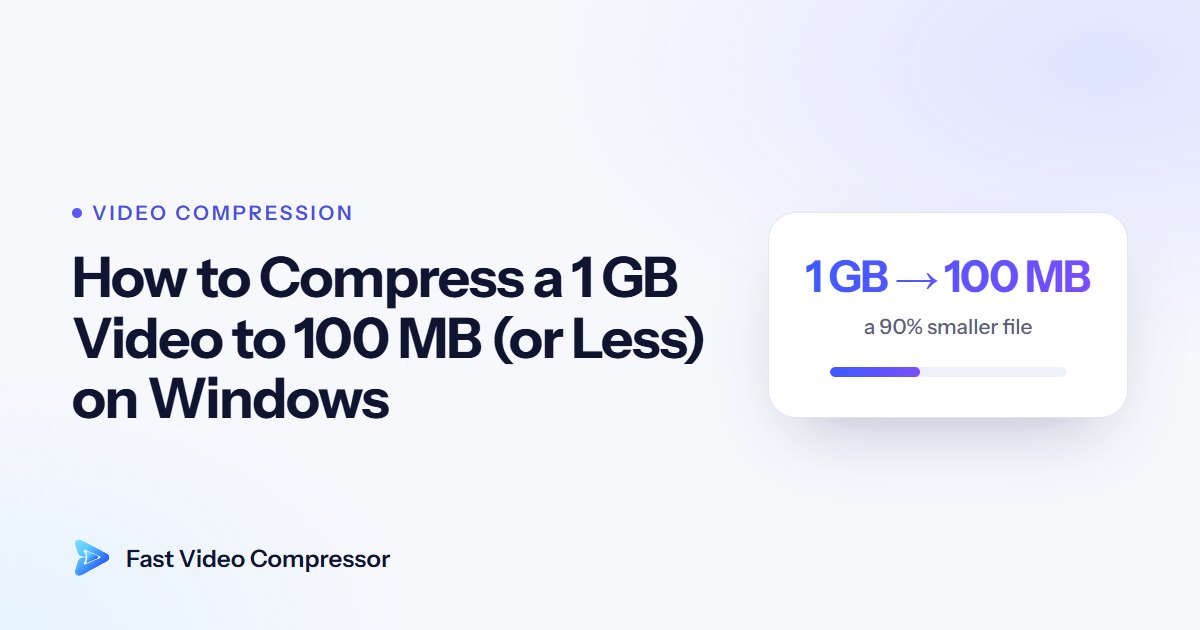
A 1 GB video is too big for most things: email, chat apps, slow uploads, or a nearly full laptop drive. 100 MB is much easier to work with. That's a 90% reduction, which sounds extreme, but it's very achievable. Most phone and camera videos are saved with far more data than they need.
This guide explains what decides whether your 100 MB version looks good, gives you the settings to use for any video length, and walks through the whole process on Windows.
Why your video is 1 GB in the first place
Phones and cameras record at a high bitrate so they never lose detail, even in fast action. A 4K phone video uses roughly 20–50 megabits every second, depending on the phone and its format setting. Played back on a normal screen, most of that data makes no visible difference.
Compression removes the data you can't see. That's why a 90% cut can still look close to the original.
Here's roughly how long a video it takes to reach 1 GB:
| Where it came from | 1 GB is about |
|---|---|
| Phone, 4K at 30 fps | about 3–6 minutes |
| Phone, 1080p at 30 fps | about 8–17 minutes |
These are based on typical iPhone recording sizes, which your phone lists under Settings > Camera > Record Video: roughly 170 MB a minute for 4K in High Efficiency mode (350 MB in Most Compatible mode) and 60–130 MB for 1080p. Screen and meeting recordings vary far more, because it depends entirely on the app's settings.
How much video fits in 100 MB?
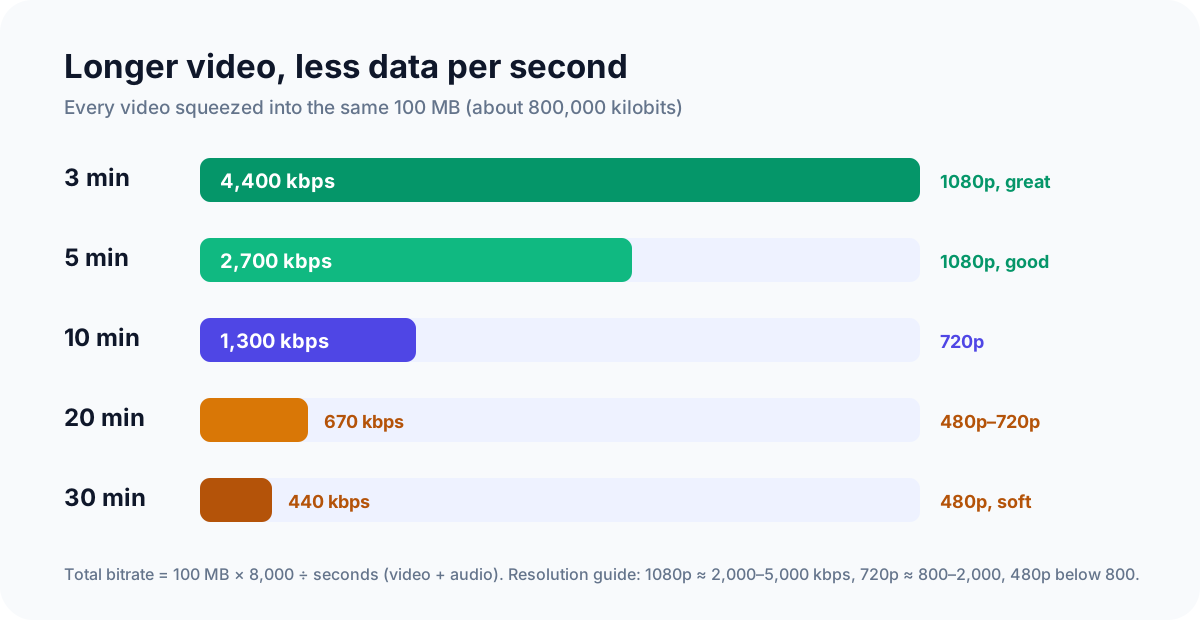
| Video length | Total bitrate in 100 MB | Recommended resolution |
|---|---|---|
| 3 minutes | about 4,400 kbps | 1080p |
| 5 minutes | about 2,600 kbps | 1080p |
| 10 minutes | about 1,300 kbps | 720p |
| 20 minutes | about 650 kbps | 720p or 480p |
| 30 minutes | about 440 kbps | 480p |
Length matters more than anything else. A 3-minute video at 100 MB can look excellent. A 30-minute video at 100 MB will look soft, whatever tool you use.
The math is simple: file size (MB) ≈ bitrate (kbps) × seconds ÷ 8,000. So 100 MB gives you about 800,000 kilobits to spend, and the longer the video, the fewer you get per second.
How to do it with Fast Video Compressor
Fast Video Compressor shows the estimated output size before you compress, so you can adjust until it's right instead of compressing again and again.
- Add the video. The free edition handles MP4 files up to 2 GB, so a 1 GB file is fine.
- Choose a goal. Start with Balanced. If the estimate is above 100 MB, switch to Smallest File.
- Pick the resolution. Use the table above. Going from 4K or 1080p down to 720p is the single biggest size saver.
- Check the estimate. The app shows a range, like "88 – 104 MB". If you need a hard limit, make sure the top of the range is under it.
- Compare before you commit. Check the side-by-side preview at a busy moment in the video.
- Start Compression. Your original file isn't changed.
 Recommended DownloadDownload Fast Video Compressor - Free for Windows 10 & 11Download free
Three examples
A 3-minute 4K phone video (about 1 GB). At 100 MB you have about 4,400 kbps. Keep it simple: choose 1080p and Balanced. It will look great on phones, laptops and most TVs.
An 8-minute 1080p family video (about 1 GB). That's about 1,700 kbps. 720p with Balanced or Smallest File keeps faces clean. 1080p would work for calm scenes, but 720p is the safer choice.
A 20-minute screen recording (about 1 GB). About 650 kbps. Screen recordings compress very well because most of the screen doesn't change, so you can often keep the original resolution with Smallest File. Check that small text is still readable in the preview.
Need an exact size?
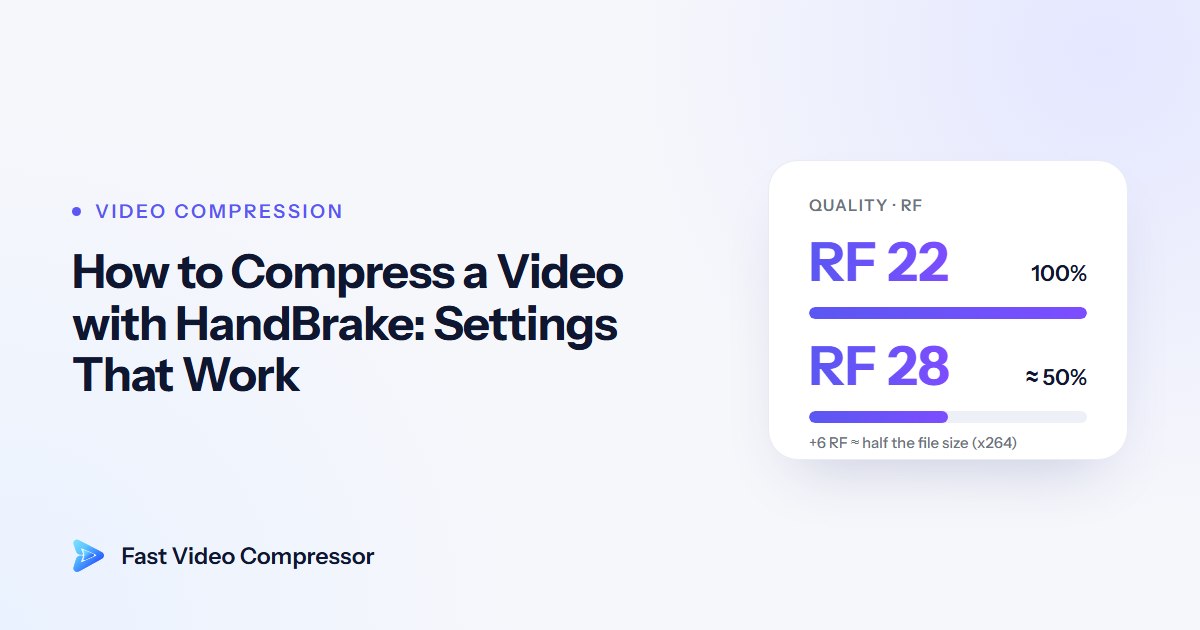
If you have a strict limit, like a 100 MB upload cap, use our video file size calculator. Enter your target and the video's length, and it tells you the exact bitrate to use. HandBrake users can enter that number in Avg Bitrate mode; see how to compress a video with HandBrake.
What if it still looks bad?
- Lower the resolution one step. 720p with enough data looks better than 1080p without it.
- Cut parts you don't need. Every minute you remove leaves more room for the rest.
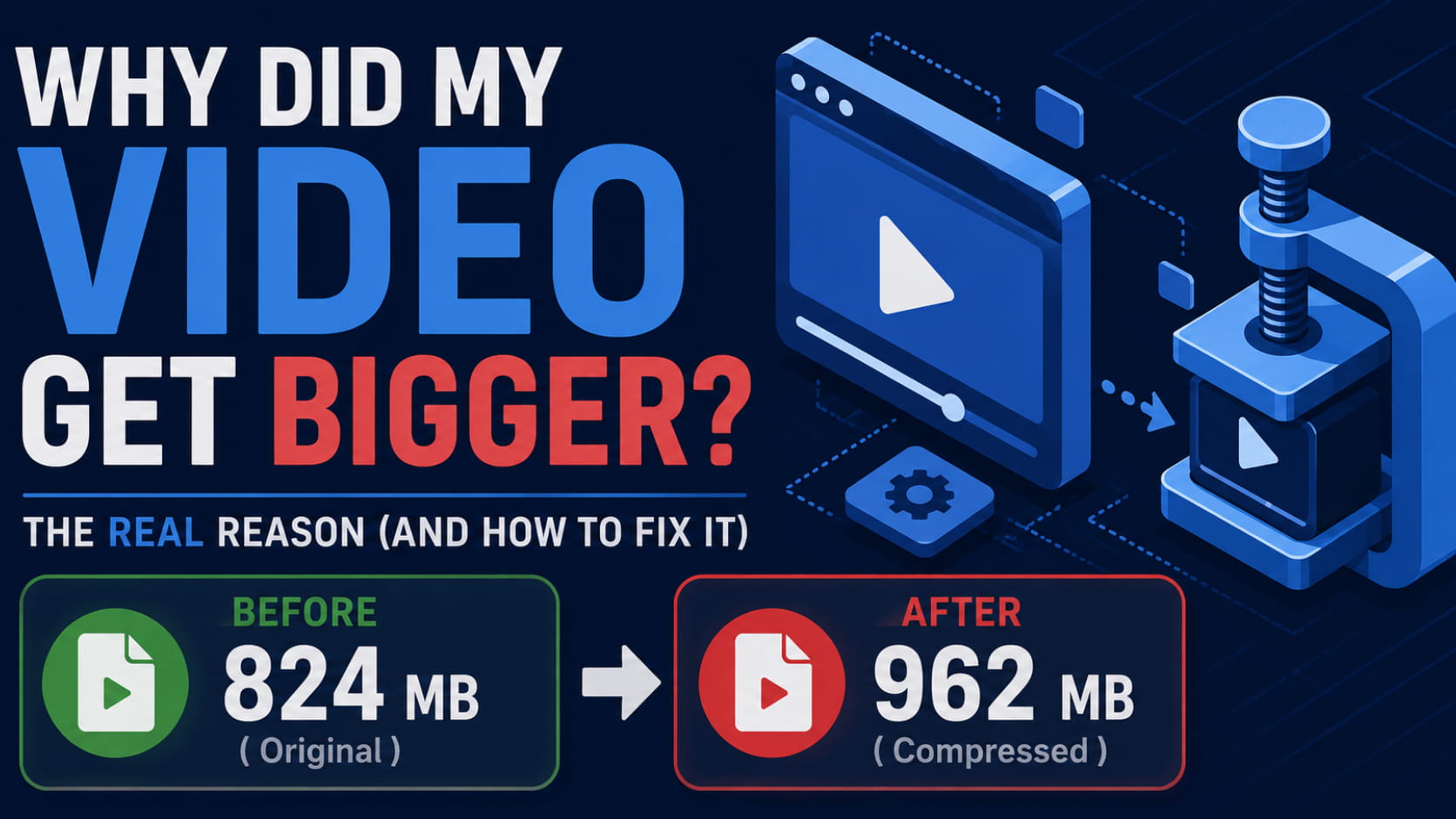
- Check the source. If your video is already heavily compressed (for example, downloaded from social media), there may be little left to remove. See why a video can get bigger after compressing.
- Accept a slightly bigger file. If 100 MB is a goal rather than a hard limit, 150 MB at Balanced can look much better than 100 MB at Smallest File.
Common questions
Can I compress a 2 GB video to 100 MB?
Yes, the same way. The free edition accepts files up to 2 GB. Pro removes the limit for bigger files.
Will compressing from GB to MB ruin the quality?
Not if the video is short enough for the target size. Use the table above, and preview the result before saving.
What's the smallest I can make a 1 GB video?
It depends on its length. Below roughly 400–500 kbps most videos start to look blurry, so a 30-minute video can't go much below about 100 MB and still look acceptable.
How long does it take to compress 1 GB?
It depends on your PC and the video's resolution. A few minutes is typical for 1080p on a modern PC. Long 4K videos take longer on the processor; Fast Video Compressor Pro can use your graphics card to finish much sooner.
Is there a GB to MB converter that works offline?
Yes. Fast Video Compressor runs entirely on your Windows PC. It's much faster than uploading 1 GB to a website, and your video stays private.
In short
1 GB to 100 MB is a 90% cut, and it works well for videos up to about 10 minutes. Pick the right resolution, check the estimate, and preview before you save. For email-sized files, see how to compress a video for email.