HandBrake is free, it runs on Windows, Mac and Linux, and it is very good at making videos smaller. What it doesn't do is tell you how big the result will be. You pick settings, wait for the encode, and find out at the end. That's why so many people end up with a file that's still too big for Discord, or one that's smaller but looks smeared.
This guide fixes that. You'll learn which four settings actually control file size, what RF numbers HandBrake's own team recommends, how to aim for an exact size, and how to check before you spend 20 minutes encoding. The screens described here are from HandBrake 1.11 on Windows (released March 2026), but the settings work the same way on Mac.
What actually makes a video file smaller
Every compressed video is a trade between three things: size, quality and time. In HandBrake you move that balance with four settings. Everything else on the screen matters far less for file size.
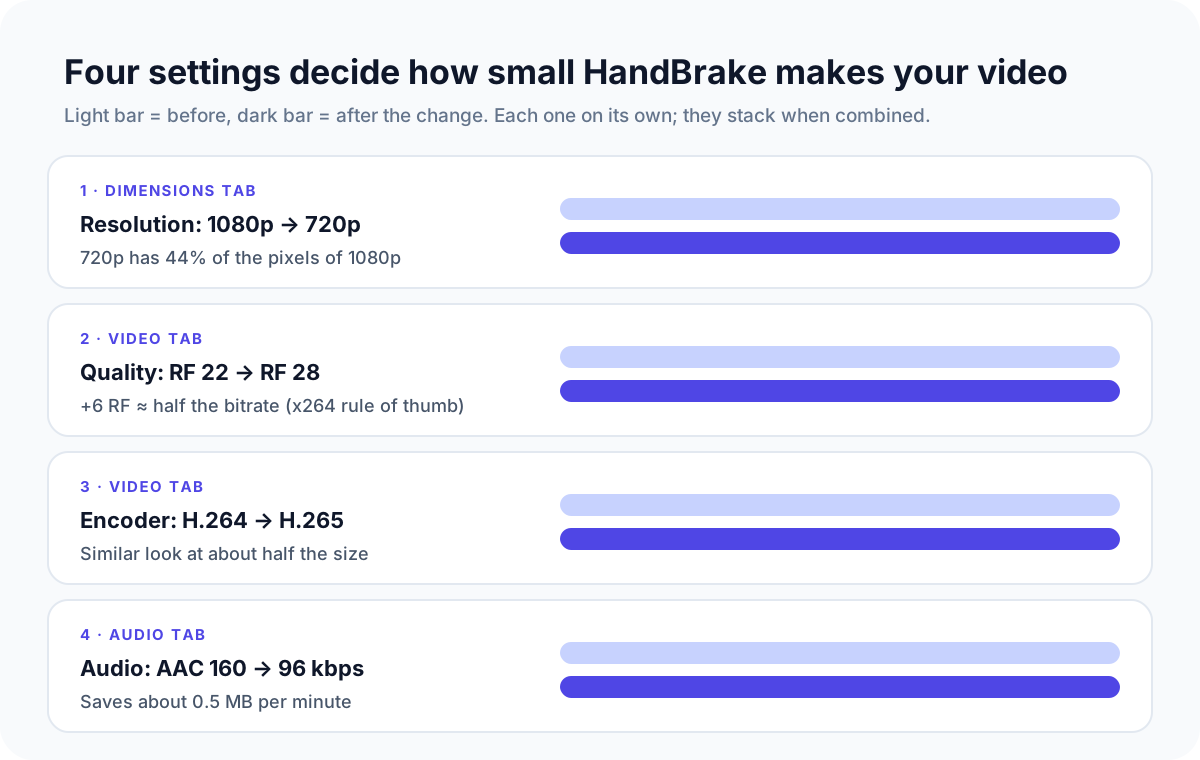
- Resolution (Dimensions tab). Fewer pixels means less to store. A 720p frame has 44% of the pixels of a 1080p frame, and on a phone screen most people can't tell the difference.
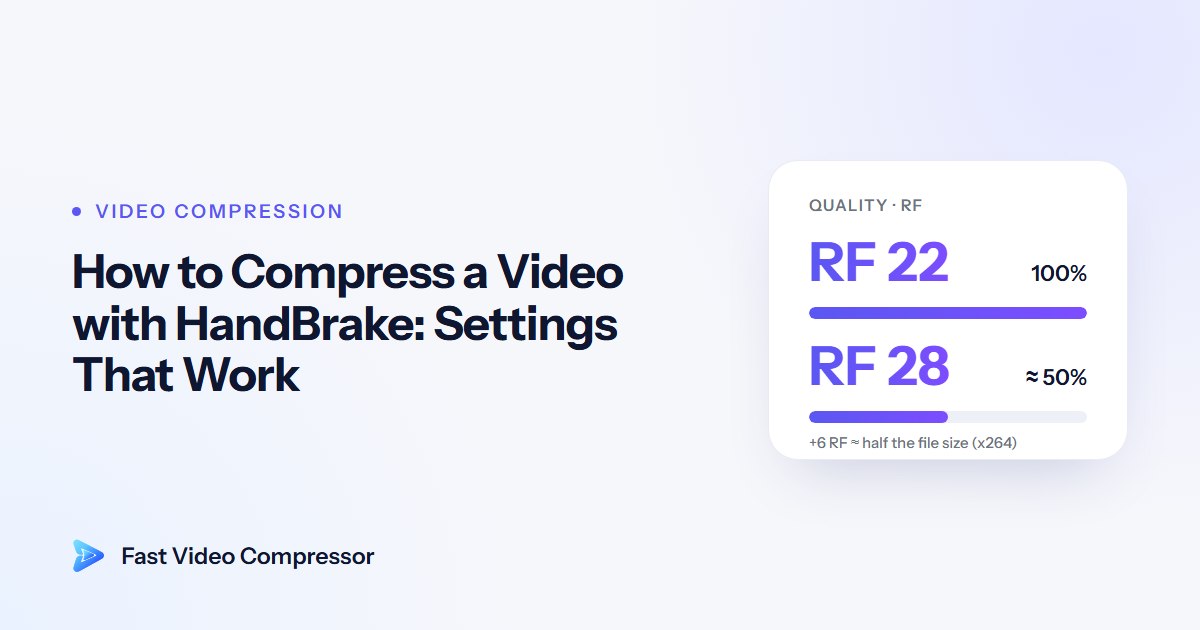
- Quality, shown as RF (Video tab). This is the biggest lever. A higher RF number means a smaller file and lower quality. With the standard H.264 encoder, raising RF by 6 roughly halves the file size, according to FFmpeg's H.264 encoding guide.
- Encoder (Video tab). H.265 squeezes the same picture into less space than H.264, at the cost of slower encoding and less universal playback.
- Audio bitrate (Audio tab). Usually small next to video, but it adds up on long recordings, and some sources carry surround tracks that are surprisingly large.
Frame rate matters too, but less than you'd think. Halving 60 fps to 30 fps does not halve the file, because modern encoders store the changes between frames rather than every frame from scratch.
Compress a video in HandBrake, step by step
If you just want a smaller copy of a video to keep or share, this is the whole process. It takes about two minutes to set up.
Open your video
Download HandBrake from handbrake.fr, the official site, and open it. Drag your video onto the window, or click Open Source and choose the file. HandBrake scans it and shows the source details at the top: resolution, frame rate and length.
Pick a starting preset
Open the Preset list and choose one from General. Fast 1080p30 is HandBrake's default and a good start for most videos. If you want a noticeably smaller file and the video will mostly be watched on phones or laptops, choose Fast 720p30 instead.
The Fast presets are a sensible balance. The HQ and Super HQ presets look better but encode more slowly and produce bigger files, so they're the wrong choice when size is the goal.
Check the resolution
Open the Dimensions tab. The preset sets a resolution limit (1080p for Fast 1080p30), which means bigger videos are scaled down and smaller ones are left alone. If your source is 4K and you only need it for sharing, 1080p or 720p is plenty.
Never push the resolution above the source. Upscaling a 720p video to 1080p makes the file bigger without adding any detail.
Set the quality (RF)
Open the Video tab. Leave Constant Quality selected and look at the RF slider. HandBrake's documentation says to "always use constant quality unless you have a specific reason not to", and the main reason not to is a hard size limit, covered further down.
Use the table in the next section to choose a number. For a typical 1080p video you want to shrink, start at RF 24.
Trim the audio
Open the Audio tab. For most videos, one AAC stereo track at 128 kbps sounds fine, and 96 kbps is enough for speech: tutorials, meetings, screen recordings. Delete extra audio tracks you don't need, such as commentary or a second language.
If a track says Passthru, HandBrake is copying the original audio unchanged. On movies ripped from disc that's often a surround track at several hundred kbps. Switch it to AAC if size matters more than surround sound.
Save and encode
At the bottom, click Browse next to Save As, choose a folder and a file name, and keep the container as MP4, which plays almost anywhere. Click Start Encode. The progress bar at the bottom shows the speed and an estimated time remaining.
When it finishes, compare the two files in File Explorer. Then watch a fast-moving part of the new one. That's where compression shows first.
What RF number should you use?
RF stands for rate factor. Think of it as "how much detail can I throw away": lower numbers keep more detail and make bigger files, higher numbers do the opposite. These are the ranges HandBrake's team recommends for the x264 and x265 encoders, from the official quality guide:
| Output resolution | HandBrake's recommended RF | For a smaller file, try |
|---|---|---|
| 480p / 576p (SD) | 18–22 | 22 |
| 720p (HD) | 19–23 | 23–24 |
| 1080p (Full HD) | 20–24 | 24–26 |
| 2160p (4K) | 22–28 | 28 |
The right column goes slightly past the recommended range on purpose. A screen recording, a lecture or a video call has large flat areas and little motion, so it stays sharp at higher RF numbers. Fast sports, gaming footage, confetti, rain or grainy low-light video need the lower end. If you're not sure, encode a short test (see "Check the size before you encode everything" below) at two RF values and compare.
Two things that catch people out:
- RF numbers don't mean exactly the same thing in every encoder. HandBrake gives the same ranges for x264 and x265, but the FFmpeg H.265 guide says x265 at 28 looks roughly like x264 at 23, at about half the size. In practice, if you switch to H.265 you can usually go a couple of points higher than you would with H.264. Test a sample to be sure.
- Going lower than the source needs doesn't add quality. A phone video re-encoded at RF 16 can come out bigger than the original and look no better. If that happened to you, our guide to why a compressed video can end up bigger than the original explains the causes.
H.264, H.265 or AV1: which encoder?
The encoder is the method used to squeeze the video. You choose it in the Video Encoder list on the Video tab.
| Encoder | File size | Speed | Plays on |
|---|---|---|---|
| H.264 (x264) | Baseline | Fast | Almost everything: old phones, TVs, browsers, WhatsApp, Discord |
| H.265 (x265) | About half of H.264 at a similar look | Slower | Most phones and computers from the last few years; some older TVs and browsers struggle |
| AV1 (SVT-AV1) | Smallest of the three | Slowest on most PCs | Modern browsers and newer devices; patchy elsewhere |
Use H.264 when the file is going to someone else and you don't know what they'll play it on. Use H.265 when the file is for you: archiving your own footage, freeing disk space, or a device you know supports it.
Below the encoder there's an Encoder Preset slider, from ultrafast to placebo. It doesn't change the quality target. It changes how hard the encoder works to reach it. A slower setting gives a smaller file at the same RF but takes longer, so moving one or two steps slower is a cheap way to save space if you're not in a hurry.
What about GPU encoding (NVENC, Quick Sync, AMD VCN)?
If your PC has a recent graphics card or an Intel processor with Quick Sync, HandBrake can encode on the GPU, which is much faster. You'll see options like H.265 NVENC in the encoder list and a Hardware preset group. If they're missing, check that GPU encoding is enabled in Preferences and that your graphics driver is up to date. HandBrake's NVENC page lists RTX 20-series cards and newer as officially supported.
The trade-off: hardware encoders are built for speed, and the software encoders (x264 and x265) usually pack more quality into each megabyte. If the smallest possible file is the goal, use software encoding. If you have a folder of 50 clips and want them done tonight, use the GPU. Don't be alarmed if your CPU still sits near 100% during a GPU encode. HandBrake's docs note this is normal, because decoding, filters and audio still run on the CPU.
How to hit an exact size (Discord, email, upload limits)
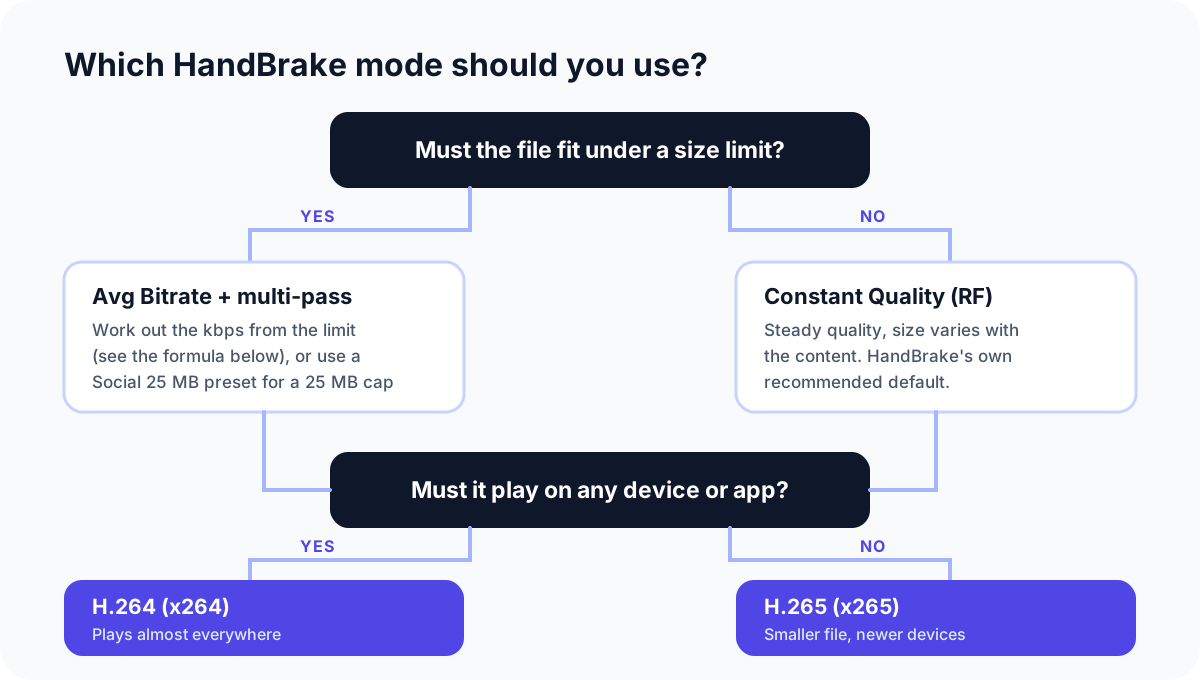
Constant Quality can't promise a size, because the size depends on the content. Ten seconds of a static slide compresses to almost nothing, and ten seconds of a football match doesn't. When a file must be under a limit, you need Avg Bitrate mode instead, and a bit of arithmetic.
Work out the bitrate from the limit
Bitrate is how much data each second of video uses, measured in kilobits per second (kbps). Size is just bitrate multiplied by time:
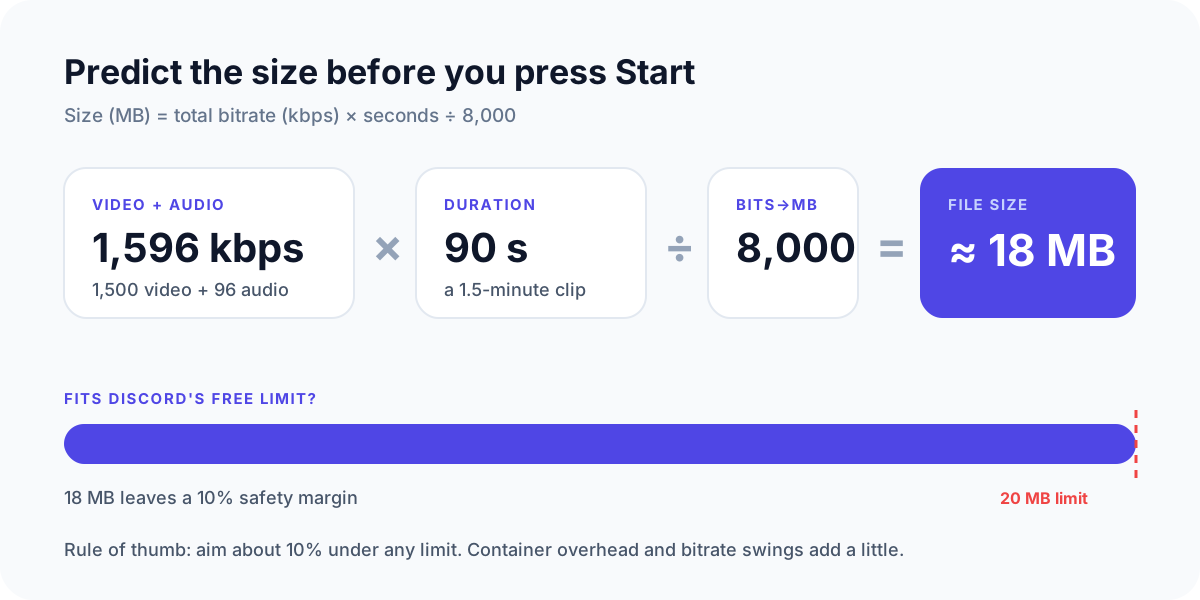
To go the other way and get the bitrate you need from a size limit:
- Take the target size in MB and multiply by 8,000. That's the total kilobits you can spend.
- Divide by the video's length in seconds. That's the total kbps.
- Subtract the audio bitrate (say 96 kbps). What's left is the number for the video.
- Aim about 10% under the limit, because the encoder will drift a little above or below its target.
Example: a 90-second clip for Discord, whose free upload limit rose to 20 MB in August 2026. Target 18 MB. 18 × 8,000 = 144,000 kilobits. 144,000 ÷ 90 = 1,600 kbps in total. Minus 96 kbps of audio leaves about 1,500 kbps for the video.
If you'd rather not do this by hand, our file size calculator does the same sum for you.
Set it up in HandBrake
On the Video tab, select Avg Bitrate (kbps) and type the video number from your calculation. Tick the multi-pass (2-pass) option, and leave the turbo first pass on. The first pass scans the whole video to see where the hard scenes are, so the second pass can give them more bits and the easy scenes fewer. The total lands much closer to your target than a single pass does.
Then match the resolution to the bitrate. 1,500 kbps looks clean at 720p but blocky at 1080p, so drop the resolution on the Dimensions tab for low targets. As a rough guide:
| Video bitrate | Resolution that still looks good |
|---|---|
| Under 800 kbps | 480p |
| 800–2,000 kbps | 720p |
| 2,000–5,000 kbps | 1080p |
These are starting points, not rules. Simple screen content looks fine at lower bitrates and fast action needs more.
Common limits to aim for
| Where it's going | Limit | Aim for |
|---|---|---|
| Discord (free account) | 20 MB | 18 MB |
| Gmail attachment (personal account) | 25 MB | 23 MB |
| Upload forms with a 25 MB cap | 25 MB | A Social 25 MB preset |
Gmail's 25 MB comes from Google's own help page; anything larger becomes a Google Drive link instead of an attachment. If the limit is 25 MB, HandBrake has a shortcut: the Social presets under Web are built to stay under 25 MB for a given length. Pick the one that matches your clip: Social 25 MB 30 Seconds 1080p60, 1 Minute 720p60, 2 Minutes 540p60 or 5 Minutes 360p60. Longer than five minutes, and no setting will make it look good at 25 MB. Send a link instead.
For a full walkthrough of the Discord case, including trimming a clip that's too long, see how to compress a video for Discord. For WhatsApp, which recompresses everything you send, read how to send large videos on WhatsApp from your PC.
Check the size before you encode everything
Encoding a two-hour video only to find it's still too big is the most frustrating part of HandBrake. Two ways to avoid it:
- Encode a sample. At the top of the window, change Range from Chapters to Seconds and set it to one minute from a busy part of the video. Encode that. Multiply the sample's size by the total length in minutes and you have a fair estimate. Then set the range back to the full video. The estimate is rough, because quiet scenes compress better than busy ones, but it's usually close enough to tell you whether you're in the right ballpark.
- Use Preview to judge quality. The Preview button encodes a few seconds with your settings so you can watch them before committing. It's the quickest way to compare RF 24 against RF 28 on your own footage.
Mistakes that make the file bigger or worse
- Choosing an HQ or Super HQ preset to "keep quality". They aim for higher quality, which means bigger files. For shrinking, start from Fast.
- Setting RF too low. RF 18 on a 1080p phone video is close to visually lossless and often bigger than the original. Lower RF is not "safer"; it's just bigger.
- Converting H.265 phone video to H.264. Many phones already record in H.265. Converting to H.264 at the same quality usually increases the size. Keep H.265, or lower the resolution.
- Leaving surround passthru audio on. Fine for a home cinema file, wasteful for a clip you're sending.
- Re-compressing a file that's already been compressed. Each pass loses a little more detail. Always start from the original if you still have it. If keeping quality is the priority, see how to compress a video without losing quality on Windows.
- Lowering the frame rate to save space. It saves less than you'd expect and can make motion look choppy. Change resolution or RF first.
When HandBrake is more than you need
HandBrake is excellent and free, and if you've followed this guide you know how to get good results from it. But it was built for people who want control over every setting, and it never shows you the output size until the work is done.
If you mostly need to make a video small enough to send, without the arithmetic, Fast Video Compressor, a free offline app for Windows shows the estimated output size before you export and lets you compare quality side by side. The free version handles MP4 files up to 2 GB, one at a time; Pro adds other formats, GPU acceleration and batch compression. For a wider look at your options, see our comparison of free video compression software and our guide to the best HandBrake alternatives for Windows.
Recommended DownloadDownload Fast Video Compressor - Free for Windows 10 & 11Download freeCommon questions
What is the best RF value in HandBrake for a small file?
For 1080p, RF 24 to 26 with the x264 encoder gives a much smaller file that still looks good for most videos. For 720p, try RF 23 to 24. With H.265 you can usually go a couple of points higher for a similar look. Test a short sample before encoding the whole video.
Can HandBrake compress a video to an exact file size?
Not directly. There's no "target size" box. Use Avg Bitrate mode with multi-pass encoding, and work out the bitrate as target size in MB × 8,000 ÷ length in seconds, minus the audio bitrate. Aim about 10% under the limit, since the result can drift slightly.
Does HandBrake reduce video quality?
Every compressed copy loses some detail, because that's how the size goes down. At HandBrake's recommended RF ranges the loss is hard to see in normal viewing. It becomes obvious at very high RF values or very low bitrates, especially in fast motion and dark scenes.
Should I use GPU encoding (NVENC, Quick Sync) in HandBrake?
Use it when speed matters more than the smallest possible file, such as a big batch of clips. Hardware encoders are much faster, but the software encoders (x264 and x265) usually fit more quality into each megabyte. If your file got bigger rather than smaller, see why a compressed video can end up bigger than the original.
Is HandBrake safe to download?
Yes, if you get it from handbrake.fr or HandBrake's official GitHub page. It's open source and has no bundled software. HandBrake's own troubleshooting guide warns against unofficial third-party builds, so avoid download sites that repackage it.
Sources
- HandBrake documentation: Adjusting quality, Official presets, NVIDIA NVENC
- HandBrake release notes on GitHub (version 1.11)
- FFmpeg wiki: H.264 encoding guide and H.265 encoding guide
- Google: Gmail attachment size limits
- Dexerto: Discord raises free upload limit to 20 MB