
The One Thing HandBrake Decided Not to Do
Older versions of HandBrake had a Target Size (MB) field. You typed in the number you wanted and it worked backwards to the bitrate. Around version 0.9.6 it was removed, replaced by constant quality and average bitrate modes.
Technically that was the right call. Constant quality produces better results than forcing a size — it holds quality steady across the whole video instead of starving the busy scenes to hit an arbitrary number. Every encoding engineer will tell you the same.
But it left a real job unsolved. Users at the time were blunt about it; one long-running forum thread has someone reverting to the previous version specifically because they missed typing in a size and getting it. And the demand never went away. There's now a small ecosystem of tools that exist purely to do what HandBrake stopped doing: Python scripts that batch clips under 8 MB for Discord, command-line wrappers built around a target size, web apps whose entire pitch is hitting 10 MB or 25 MB exactly.
One software directory even lists HandBrake as the top alternative to a target-size web tool — a neat illustration of the gap. HandBrake is the better transcoder. It just isn't the answer to that question.
What this means in practice
If you need a clip under 10 MB for Discord or under 25 MB for email, the HandBrake workflow is: pick a quality setting, encode, check, and if you missed, change it and encode again. On a long file that's twenty minutes per guess.
You can switch to average bitrate and calculate the kbps yourself — target megabytes converted to megabits, divided by duration in seconds, minus your audio bitrate. It works. Forum regulars have been writing that arithmetic out for strangers for over a decade. But you're now doing maths before you can compress a video, and you've given up the quality consistency that made constant quality worth using in the first place.
How Fast Video Compressor Solves It
You see the estimated size before you encode

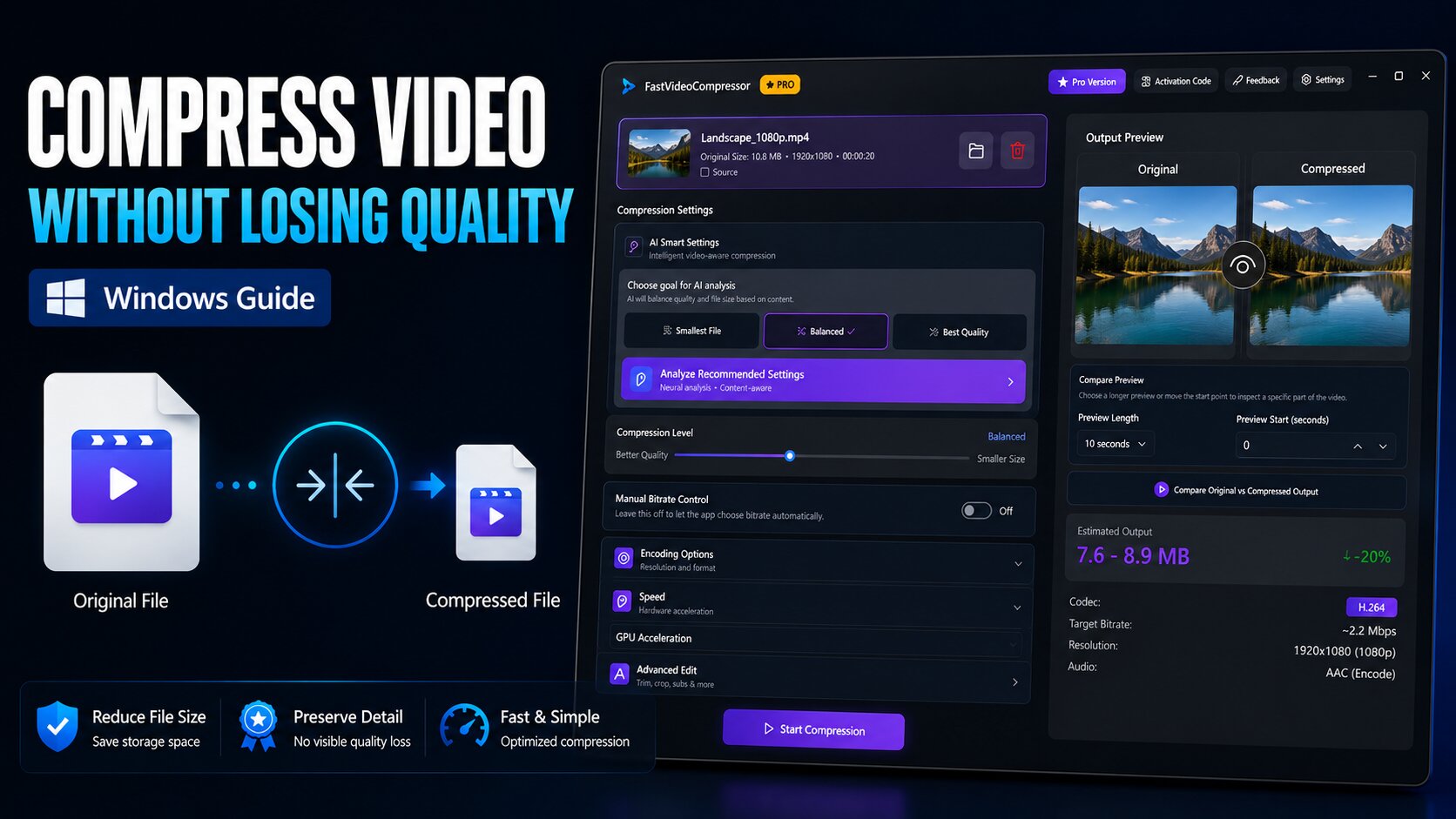
Add a file and the app reads its real metadata — duration, resolution, frame rate, source bitrate. It then shows an estimated output size as a range, with the percentage reduction, alongside the codec, target bitrate, resolution and audio settings it intends to use.
A range rather than a single number is the honest answer under quality-based encoding, because the final size genuinely depends on what happens in the footage. But a range is enough to know whether you'll clear a 10 MB cap — which is the question you actually have. Adjust, watch the estimate move, encode once.
This isn't a target-size field either. It's the other way of solving the same problem: instead of forcing a number and accepting whatever quality falls out, you see what you'll get and decide before spending the time.
You pick a goal, not a number

Rather than choosing an encoder and then a quality value on that encoder's private scale, you choose Smallest File, Balanced or Best Quality. The app analyses your specific video and proposes a compression level for it. Override anything you like — but you don't need to know what CRF is to get a sensible result.
You compare against the original before committing
Compare Original vs Compressed Output plays your source and the compressed result side by side at your current settings, and you choose which seconds to inspect. Set the start point to the hardest scene — the fast pan, the dark interior, the fine text — and you'll know in ten seconds whether the setting holds.
HandBrake does have a preview that encodes a short sample, which is genuinely useful. The difference is that it shows you the result, not the result against the original at a stretch you picked.
You can still force a bitrate when you need to
Manual Bitrate Control is there for hard caps, and it's in the free tier. Switch it on, set a target in kbps, and the estimate updates to match — so you dial it in against a live number rather than encoding to find out.
It installs from the Microsoft Store
No separate runtime to hunt down, no installer to vet, automatic updates, sandboxed permissions. FFmpeg is bundled inside the app, so there's nothing else to set up. Runs on Windows 10 (1809+) and 11, across x86, x64 and ARM64.
Recommended DownloadDownload Fast Video Compressor - Free for Windows 10 & 11Download freeCredit Where It's Due: HandBrake Is Excellent
None of the above makes HandBrake a bad tool, and any comparison that pretends otherwise isn't worth reading.
HandBrake is free, open source, GPL-licensed and actively developed since 2003. It runs on Windows, Mac and Linux. No paid tier, no watermark, no file size cap, no feature held back for money. The March 2026 release added ProRes and DNxHR encoders with MOV output for production work, and extended the FFV1 presets used by archives digitising old tape and film. If you know what you want and you know the vocabulary, nothing you can buy does it better.
The rest of this page is about where that vocabulary becomes the obstacle.
The Other Places People Get Stuck
None of these are bugs. They're the cost of a tool built for control rather than for someone with one oversized file and a deadline.
RF 22 doesn't mean one thing
Almost every HandBrake guide hands you a number — "use RF 20 for 1080p, RF 23 for 4K." What they usually don't say is which encoder that number applies to.
HandBrake's own documentation states plainly that quality values are not comparable between encoders. RF 22 on x264, RF 22 on x265 and RF 22 on SVT-AV1 produce three different results at three different file sizes. Follow a guide written for one encoder while using another and you get an outcome matching nothing you were told to expect — which is exactly the confusion filling the forums.
You need a specific Microsoft runtime first
The Windows build requires the .NET Desktop Runtime — currently version 10.0, and specifically the Desktop variant, not the console one that shares most of its name. Install the wrong one and HandBrake won't launch.
It's free and it's a one-off, but it's another download and another dialog before you've compressed anything. And it isn't always smooth: when 1.11.0 shipped in March 2026, it needed both .NET 8 and .NET 10 installed simultaneously to encode properly, which produced a run of confused bug reports before it was sorted out.
Custom presets may not survive an upgrade
This comes from HandBrake's own release notes, which advise backing up custom presets and preferences before updating because they may not be compatible with newer versions. If you've spent an evening building settings that work for your camera, that's a real irritation — and the kind you discover after the update, not before.
The settings surface is enormous
Summary, Dimensions, Filters, Video, Audio, Subtitles, Chapters — with anamorphic handling, detelecine, decomb, denoise, sharpen, colour profiles, two-pass, turbo first pass, encoder tunes, profiles and levels underneath. Every one of those exists because someone genuinely needs it. For someone whose only goal is "make this smaller so I can send it," that surface area is the obstacle.
Fast Video Compressor vs HandBrake, Side by Side
| Fast Video Compressor | HandBrake 1.11.2 | |
|---|---|---|
| Size estimate before encoding | Yes — range with % reduction | — |
| Goal-based settings | Smallest File / Balanced / Best Quality | Presets by device and platform |
| Preview | Side-by-side vs original, chosen start point | Sample encode |
| Install | Microsoft Store, one click | Installer + .NET Desktop Runtime 10.0 |
| Manual bitrate control | Yes (free tier) | Yes |
| Target file size field | No field — the estimate serves the job | Removed in 0.9.6 |
| Local processing, never uploaded | Yes | Yes |
| Price | Free tier + Pro | Free, no paid tier |
| Platforms | Windows only (x86, x64, ARM64) | Windows, Mac, Linux |
| Output formats | MP4 free; HEVC, AV1, WebM, WebP on Pro | MP4, MKV, WebM, MOV, ProRes, DNxHR, FFV1 |
| Hardware encoding | NVENC, QSV, AMF — Pro | NVENC, QSV, AMF — free |
| Input file size limit | 2 GB free; none on Pro | None |
| Batch queue | One at a time free; queue on Pro | Yes, free |
| Editing | Trim, split, crop, subtitle burn-in (Pro) | Chapter and range selection |
| Command line / scripting | — | Yes (HandBrakeCLI) |
HandBrake wins several rows outright — free hardware encoding, no size cap, free batch queue, more output formats, a command line, three operating systems. Those are real, and they should decide it for some people.
The Wider Landscape: Every HandBrake Alternative Worth Knowing
Fast Video Compressor isn't the only option, and it isn't the right one for every job. Here's the honest map.
Fast Video Compressor — best for compressing to a size limit on Windows
Where it wins: you see the estimated output size before encoding, choose a goal instead of an encoder-specific quality number, and compare the result against your original before committing. Installs from the Microsoft Store with no runtime prerequisite. Everything runs locally.
Where it doesn't: Windows only. The free tier is MP4/H.264, CPU encoding, one file at a time, 2 GB per file — GPU encoding, batch queues, HEVC and AV1 are Pro.
Cost: free tier, paid Pro.
VidCoder — best for HandBrake's engine with a cleaner interface
Where it wins: it's a separate Windows front-end built on HandBrake's own encoding engine, so you get identical results with a different, more streamlined window layout and straightforward batch queuing. If your objection is purely to how HandBrake looks and feels, this is the lowest-friction move you can make. Free.
Where it doesn't: because it uses the same engine, it inherits the same design decisions — including no target file size and no pre-encode estimate. Windows only.
Cost: free.
Shutter Encoder — best for professional format and archival work
Where it wins: a free, GPL-3.0, open-source FFmpeg front-end by Paul Pacifico, running on Windows, macOS and Linux. It handles a very wide range of codecs and containers including ProRes, DNxHD and camera-native formats, plus image sequences and audio work. Crucially it can cut and re-wrap without re-encoding at all, which is the right tool when you want to trim or change container without touching quality. Batch processing and reusable presets throughout.
Where it doesn't: it's broader and deeper than HandBrake, not simpler. If HandBrake's option count is your problem, this won't fix it. 64-bit only.
Cost: free.
FFmpeg — best for scripting and automation
Where it wins: it's the engine underneath HandBrake, Shutter Encoder, VidCoder and Fast Video Compressor. Nothing is faster or more capable, nothing else automates as cleanly, and it runs everywhere. If you're processing hundreds of files on a schedule, this is the answer.
Where it doesn't: command line only. There's no preview, no estimate, no interface — you'll be reading documentation and testing flags. Most people who arrive here from a search wanted something else.
Cost: free.
Wondershare UniConverter — best for an all-in-one commercial toolkit
Where it wins: a polished paid suite that bundles conversion with video editing, screen recording, DVD burning and batch compression. If you want one purchase that covers several jobs and don't mind paying for it, that breadth is the pitch.
Where it doesn't: it's the most expensive option here by some distance, and most of that breadth is irrelevant if your actual problem is one file that's too big. Verify current pricing and trial limits before buying — they change.
Cost: paid.
Browser-based compressors — best for one small clip, right now
Where it wins: the current generation runs FFmpeg in the browser via WebAssembly, so nothing uploads and there's nothing to install. For a short clip on a machine you don't control, they're a genuinely good answer.
Where it doesn't: browser memory ceilings make large files unreliable, they can't reach dedicated GPU encoders the way a native app can, there's no real batch queue, and a tab crash loses everything.
Cost: usually free.
Which One for Your Situation
"I have one big file and I need to send it today"
Fast Video Compressor. Add the file, pick Balanced, read the estimate, check a hard scene, compress. No vocabulary required.
"I need it under exactly 10 MB"
Fast Video Compressor — this is the case the whole comparison turns on. Turn on Manual Bitrate, set the kbps, watch the estimate fall under your cap, encode once. In HandBrake or VidCoder you'd be doing the arithmetic by hand and confirming it afterwards.
"I don't understand any of these settings"
Fast Video Compressor. That's what the goal buttons are for.
"I keep getting results I didn't expect"
Fast Video Compressor, because the estimate and the side-by-side comparison both happen before you commit. Most unexpected results are settings you couldn't evaluate until it was too late.
"I just don't like HandBrake's interface"
VidCoder. Same engine, same results, cleaner window — and free.
"I need to trim a clip without re-encoding it"
Shutter Encoder. Cutting and re-wrapping without a full re-encode is exactly what it's for, and no quality is lost.
"I'm re-encoding a media library"
HandBrake, if you're comparing free tiers — its batch queue and hardware encoding cost nothing and you'll want both. On Pro, Fast Video Compressor's queue with GPU-aware concurrency does the same job with less setup.
"I'm processing hundreds of files on a schedule"
FFmpeg, with a script. Nothing else comes close for automation.
"I want to understand the settings"
HandBrake, genuinely. It exposes everything, its documentation is good, and learning it makes you better at this. Start with one encoder and stay on it until the numbers make sense.
"I'm on Mac or Linux"
HandBrake or Shutter Encoder. Fast Video Compressor is Windows-only — no argument here.
"I'm on a Snapdragon laptop"
Both HandBrake and Fast Video Compressor have native ARM64 Windows builds, so neither runs under emulation. But dedicated hardware encoding on Qualcomm's video engine isn't broadly supported by desktop encoding tools yet — HandBrake has an open feature request for it and falls back to a Windows Media Foundation path on ARM. Expect software encoding speeds on these machines for now, whichever you choose.
Frequently Asked Questions
What is the best HandBrake alternative for Windows?
It depends on why you're leaving. For compressing to a size limit, Fast Video Compressor shows the estimated output size before you encode and lets you compare against the original. For the same engine with a cleaner interface, VidCoder. For professional formats and lossless cutting, Shutter Encoder. For scripting, FFmpeg.
What is the best free HandBrake alternative?
VidCoder and Shutter Encoder are both completely free with no paid tier, as is FFmpeg. Fast Video Compressor has a free tier covering MP4 output up to 2 GB per file, with GPU encoding and batch queues on Pro.
Can HandBrake compress to a specific file size?
Not directly. Older versions had a Target Size (MB) field; it was removed and replaced with constant quality and average bitrate modes. To hit a size now, switch to average bitrate and calculate the kbps yourself: target size in megabits, divided by duration in seconds, minus your audio bitrate. Leave about 10% headroom.
Is HandBrake safe to download?
Yes, from handbrake.fr or its official GitHub releases. It's open source, two decades old and widely audited. Be careful with mirror sites and search ads — bundled installers carrying the HandBrake name have circulated before and they aren't from the project.
Is HandBrake really free?
Completely. GPL-licensed open source, no paid tier, no watermark, no feature withheld. Any site charging for HandBrake is reselling something you can get for nothing.
What's the best RF setting in HandBrake?
There isn't one, because it depends on which encoder you're using. Values on x264, x265 and SVT-AV1 aren't interchangeable, and HandBrake's own documentation says so. Pick an encoder, start in the low twenties, encode a short test section, and adjust from what you see rather than from a number in a guide.
Why does HandBrake need .NET Desktop Runtime?
The Windows interface is built on it. You need the Desktop runtime specifically — currently 10.0 — not the console runtime with the similar name. If HandBrake refuses to launch after installing a runtime, that's usually why. Fast Video Compressor installs from the Microsoft Store with nothing else required.
Why did HandBrake make my file bigger?
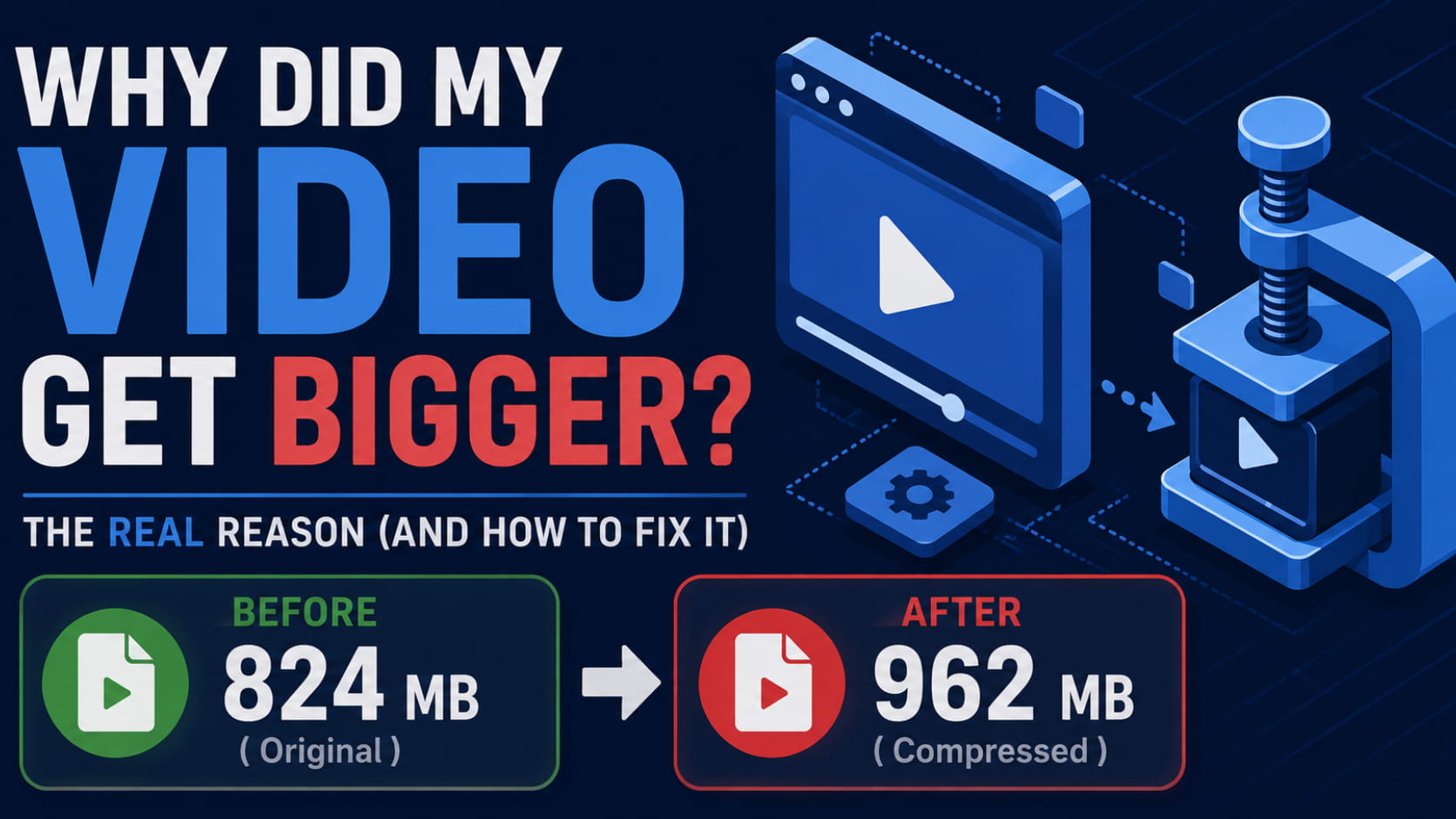
Usually because the quality setting you chose asks for more data than the source already contains. If a file was already efficiently encoded and you re-encode it at a higher quality target, it grows. Check the source's existing bitrate before choosing a setting — or use a tool that estimates the output size before you start.
The Bottom Line
HandBrake made a deliberate choice years ago to stop telling you what size you'd get, and stood by it. Technically it was correct. Practically it left a gap people have been building workarounds for ever since.
If your problem is "this needs to be under a limit and still look right," that gap is your problem — and Fast Video Compressor is built around closing it. You see the estimate before you encode, you pick a goal instead of a number, and you check the result against your original before spending the time.
If your problem is something else — a cleaner interface, professional formats, automation, another operating system — the map above points somewhere better, and most of those options are free.
Recommended DownloadDownload Fast Video Compressor - Free for Windows 10 & 11Download free