
How to compress an MP4 on Windows (4 steps)
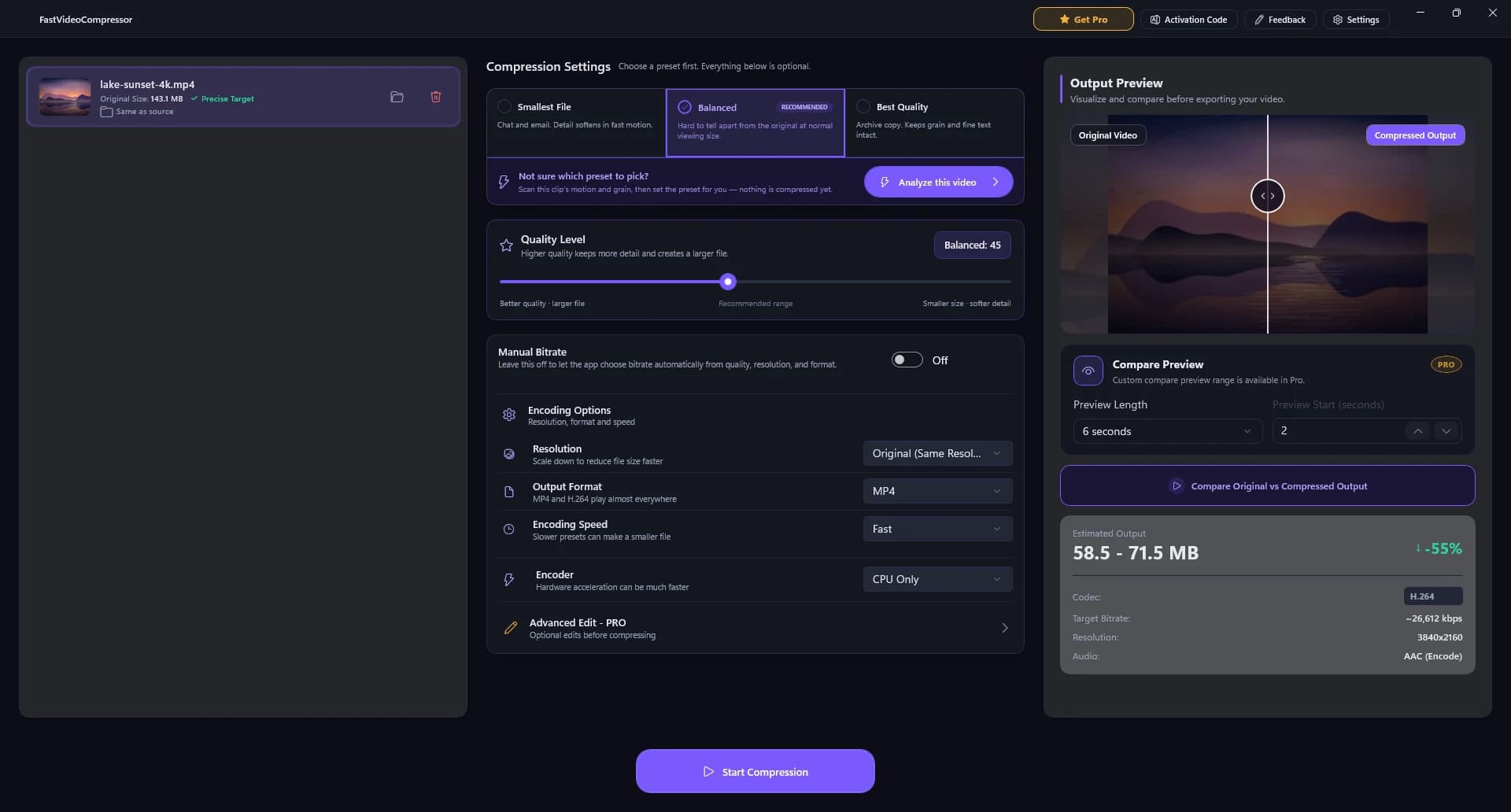
- Add the MP4. Drag it into Fast Video Compressor, or click the drop area to browse. You'll see the file name and original size.
- Pick a preset. Smallest File for chat and email, Balanced (recommended) for most videos, Best Quality for an archive copy.
- Check the estimate. The Estimated Output panel shows the new size. Move the Quality Level slider and it updates live.
- Compare, then compress. Click Compare Original vs Compressed Output to see both side by side, then Start Compression.
What result to expect
In our test, a 20-second 4K clip went from 143 MB to 65 MB on the Balanced preset (55% smaller) and stayed 3840×2160. How much you save depends on the source: phone videos and screen recordings saved at a high bitrate usually shrink a lot; files that were already compressed shrink less.
If a file ever comes out bigger, the source was already very efficient - see why a compressed video can get bigger.
Which settings make an MP4 smaller
- Preset / quality level: the biggest lever. Balanced is a good default; drag towards "Smaller size" for more savings.
- Resolution: scaling 4K down to 1080p makes the file much smaller and is usually invisible on a phone or laptop screen.
- Output format: MP4 with H.264 plays almost everywhere - keep it unless you know the device supports something newer.
- Manual bitrate: when you must hit an exact size, set a target bitrate. Use the file-size calculator.
Why compress MP4 offline instead of online
- No upload wait: a 1 GB file can take longer to upload than to compress.
- Bigger files: online tools often cap free files at a few hundred MB; Fast Video Compressor handles MP4s up to 2 GB free, with no limit in Pro.
- Private: the video never leaves your computer.
Frequently asked questions
How do I reduce the size of an MP4 file on Windows?
Open it in Fast Video Compressor, choose the Balanced preset, check the estimated size, and click Start Compression. To go smaller, drag the Quality Level slider toward Smaller size or lower the resolution.
Can I compress an MP4 without losing quality?
Any compression removes some data, but Balanced is tuned to be hard to tell apart from the original at normal viewing size. Use the side-by-side preview to check before exporting.
Does compressing an MP4 change the resolution?
Not unless you choose to. Resolution stays the same by default; you can scale down in Encoding Options for an even smaller file.
Is there an MP4 file size limit?
The free edition handles MP4s up to 2 GB each; Pro removes the limit. Nothing is uploaded, so there is no upload limit either.
Is MP4 compression free?
Yes. MP4 is the format the free edition supports. Pro adds MKV, AVI, MOV, WMV, WEBM and M4V.
Try it on your own video
Fast Video Compressor is free on the Microsoft Store. Nothing is uploaded, and you see the new size before you compress.
Download free for Windows