First: This Happens to Everyone
You had a video that was too big. You ran it through a compressor. It came back bigger.
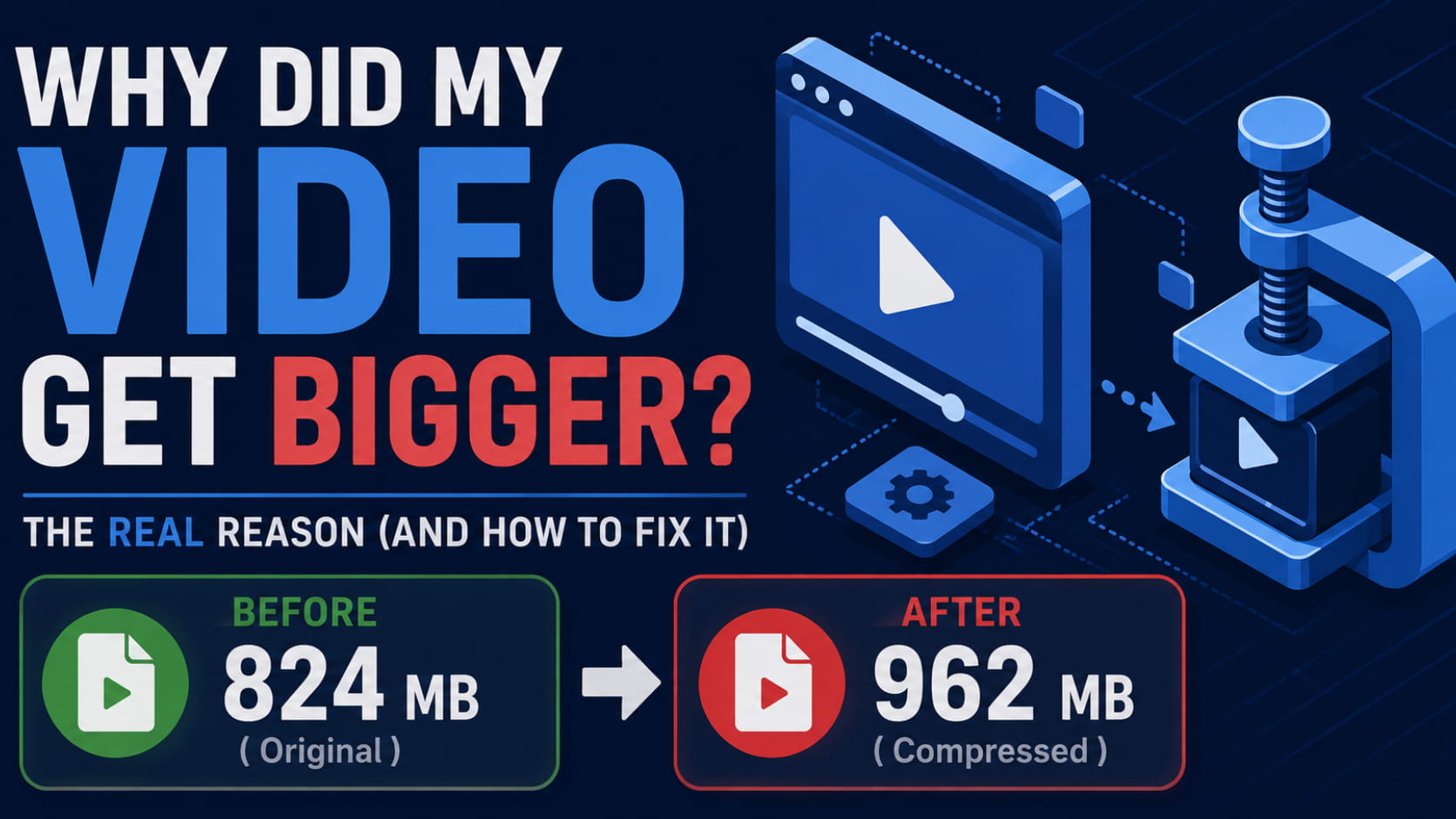
You haven't broken anything, and you're not the only one. People have been asking this question for over fifteen years — about HandBrake, about Premiere, about Clipchamp, about the video editor that came with their phone. One user turned an 824 MB file into a 962 MB one. Another made a 600 MB video into 1.3 GB while trying to shrink it.
It happens because of one small misunderstanding about what compression actually does.
Compression Isn't a Shrink Button
Here's the part that explains everything else.
Think of re-saving a photo. If you take a low-quality JPEG and save it again at maximum quality, the file gets bigger — but the picture doesn't get any better. You've told your computer to store a blurry image very carefully. All that extra space is spent preserving the blur.
Video works exactly the same way. A compressor doesn't look at your file and take a slice off. It unpacks the video completely, then packs it again using the settings you chose. If those settings are better than what the video was originally saved at, you get a bigger file with no more detail in it.
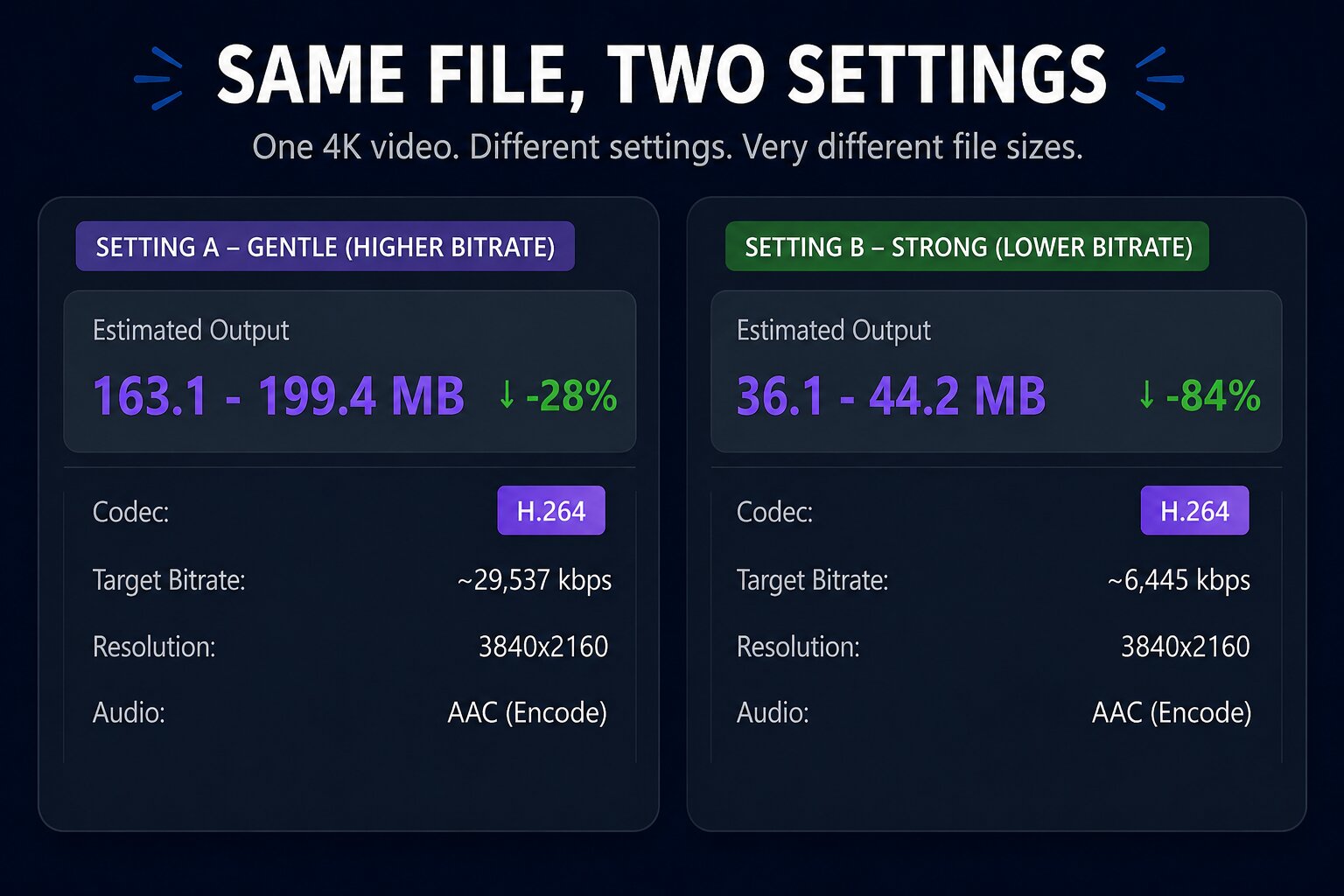
A video's size comes down to two things: how much data it uses each second, and how long it is. That "data per second" number is called the bitrate, and it's the one that matters here. If your video was saved at 5,000 kbps and you compress it at 8,000 kbps, the file gets bigger. Nothing looks better. You just used more space.
Here's the same 4K video with two different settings — same picture, same resolution, same format. Only the bitrate changed:
So the question becomes: how did you end up asking for more than you started with? There are four common ways.
1. The Video Was Already Squeezed Small
This one catches people who did nothing wrong at all.
Videos from YouTube, Netflix, Instagram or WhatsApp have already been compressed — very carefully, by companies who spend a lot of money getting it right. They're already close to as small as they can sensibly go.
Run one of those through a compressor at a normal setting and you'll often get something bigger, because "normal" is gentler than what the platform used.
HandBrake's own team say this plainly on their support forum: it's completely normal to end up with a bigger file if you compress it more gently than the original was compressed.
What to do: if the video came off a website or a messaging app, it's probably already small. Compressing it again mostly costs you quality without saving much space.
2. You Typed In a Number That Was Too High
The most common cause, and the easiest to fix.
If a tool asks you for a bitrate, it will do exactly what you tell it. Type 8,000 for a video recorded at 4,000 and you've just doubled the size.
Watch out for presets called things like Match Source. They usually match the size of the picture and the frame rate — not how much data the video used. So a "match source" export can easily come out much larger than the source.
What to do: find out your video's current bitrate first (there's a quick way below), then pick something clearly lower.
3. You Edited It First
This is the one that surprises people most, and it explains the really extreme cases.
A video editor doesn't change your file. It takes the video completely apart, applies your edits, and builds a brand new video using its own export settings — which know nothing about how your original was saved. Add one line of text to a clip and the whole thing gets rebuilt from scratch.
One person recorded a 116 MB training video off their screen, made a small edit in Premiere, and got back 633 MB. After trying twenty different settings, they ran that 633 MB file through HandBrake and it came down to 192 MB — looking exactly the same. Which tells you the extra 440 MB wasn't picture. It was just wasted space.
Screen recordings suffer worst here, because most of the screen isn't moving. A recorder can store a mostly-still screen very cheaply. An editor's export settings assume there's motion everywhere and reserve space for it.
What to do: think of your editor's export as a middle step, not the finished file. Export it at good quality, then compress that separately.
4. You Picked a Format That Isn't Built for Small Files
Some video formats simply need more space than others to show the same picture.
H.265 (also called HEVC) and AV1 are the efficient ones — they get similar quality in a smaller file. H.264 is the older, more compatible one, and it needs more room. So converting an H.265 video to H.264 so it plays everywhere will make it bigger. That's the trade.
The bigger trap is choosing an editing format like ProRes or DNxHR. These exist so professionals can edit footage smoothly, and they're deliberately huge — the opposite of compression. Pick one by accident in an export menu and your file can end up several times larger.
What to do: for sharing, stick with H.264, or use H.265 if you know the person can play it.
Two Smaller Things Worth Checking
These won't double your file, but they add up when you're trying to squeeze under a limit.
Uncompressed audio. Some export settings save the sound without compressing it. On a long video it barely matters. On a 30-second clip you're trying to get under 10 MB, it can eat a real chunk of your space for no benefit you can hear. Set the audio to AAC at 128 kbps.
Bigger picture or more frames. Exporting a 720p video at 1080p doesn't add any detail — the detail isn't there to find — but it does add data. Same with turning 30 frames per second into 60. Leave both matched to your original unless you have a reason not to.
The One Check That Prevents All of This
Every cause above is really the same mistake: compressing without knowing what you started with.
So before you compress anything, find out your video's bitrate:
On Windows — right-click the video, choose Properties, then open the Details tab. You'll see "Total bitrate" along with the frame rate and picture size.
Then the rule is simple: aim lower than that number. If your video is 6,000 kbps, then 3,000 will roughly halve the size. 8,000 will make it bigger, whatever the button says.
Or let the tool tell you first
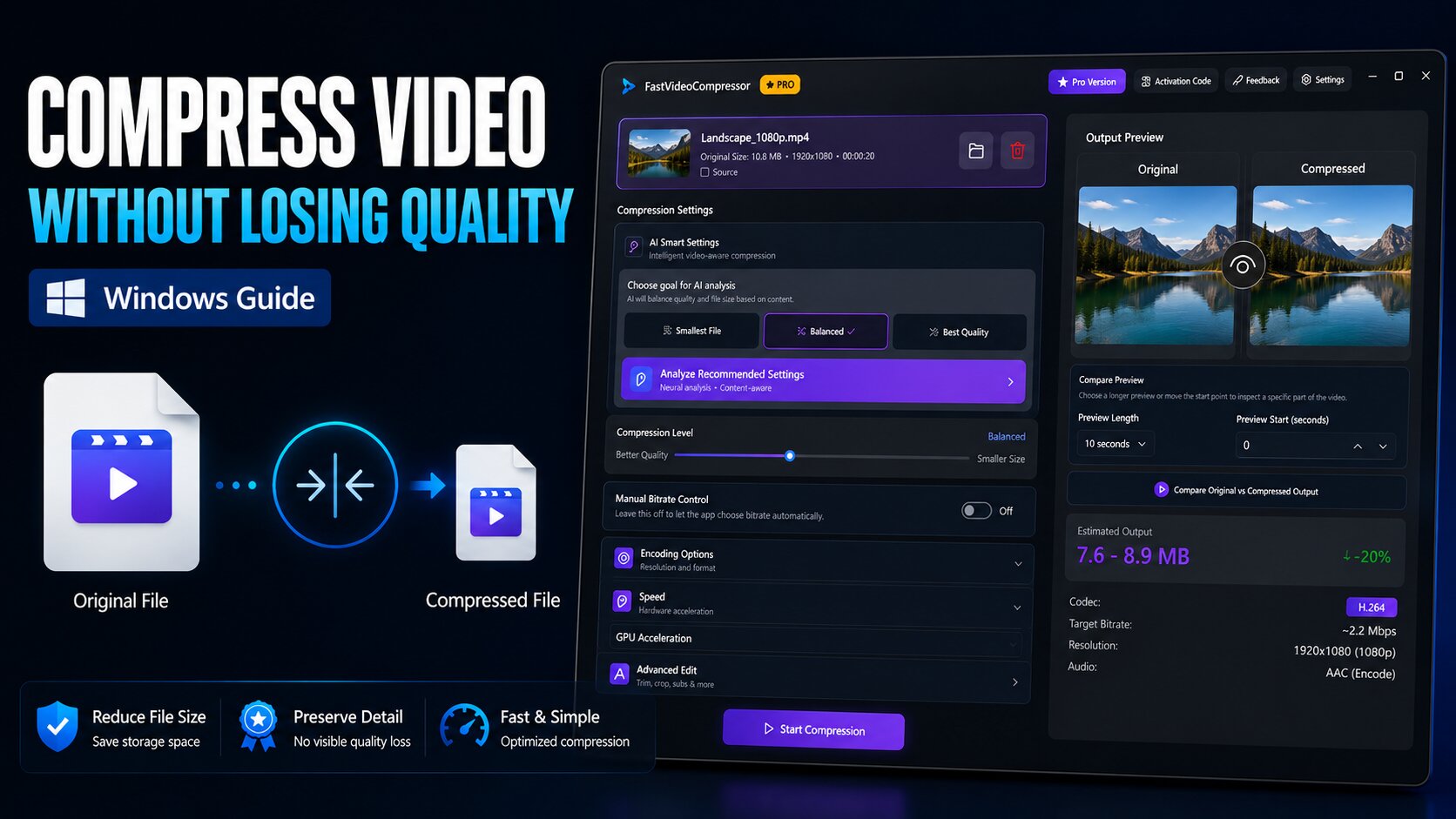
This is exactly why Fast Video Compressor shows you an estimate before you start. Add your video and it reads the file itself — how long it is, the picture size, how much data it's using — then shows you roughly how big the result will be, and how much smaller that is.
If the estimate isn't smaller, you can see it straight away and change the setting. No twenty-minute wait to find out you got it wrong.
You can also compare the compressed version against your original before you commit, so you can check it still looks right as well as being smaller.
Recommended DownloadDownload Fast Video Compressor - Free for Windows 10 & 11Download freeDon't Just Compress It Again
When it goes wrong, the natural reaction is to run the new file through again at a lower setting. Try not to.
Every time a video is compressed, some detail is thrown away for good. Compress that result again and the tool now has to spend space storing the damage from the first attempt, as if it were part of the picture. Two rough compressions look noticeably worse than one good one that reaches the same size.
Go back to your best original and compress that once, with a setting you've checked.
Common Questions
Why is my compressed video bigger than the original?
Because the settings you chose are better quality than the video was originally saved at. Compression re-records your video at the quality you pick — it doesn't just take a slice off the existing file. Check your video's bitrate and choose something lower.
Why did HandBrake make my file bigger?
The quality setting you chose asks for more data than your video actually had. HandBrake's own team describe this as normal behaviour when you compress more gently than the original was compressed. Try a higher RF number, or check your source first.
Why is my Premiere export bigger than the clip I put in?
Premiere rebuilds your whole video from scratch using its export settings, which know nothing about your original file. Presets like "Match Source" match the picture size and frame rate, not the amount of data. Export at good quality, then compress that file separately.
Does compressing a video twice make it smaller?
Smaller, yes — but it'll look worse than one good compression to the same size. Each round throws away detail permanently. Always go back to the original.
Why is my screen recording so much bigger after I edit it?
Most of a screen recording isn't moving, so recorders store it very cheaply. Editors assume there's motion everywhere and reserve space for it. That's why screen recordings balloon after editing — and why compressing them afterwards saves so much.
Should I use H.265 to make my file smaller?
It is more efficient — same quality, smaller file. The catch is that not every device and browser can play it. Use H.265 for videos you're keeping, and H.264 for anything you're sending to someone else.
How do I check a video's bitrate on Windows?
Right-click the file, choose Properties, then the Details tab. Total bitrate, frame rate and picture size are all listed there.
In Short
Compression isn't a shrink button. It re-saves your video at whatever quality you choose — and it will happily choose a higher quality than you started with.
Almost every case of a file getting bigger comes down to compressing blind: not knowing how much data your video was already using, or letting an editor decide for you.
Check first. Aim lower. Compress once, from your best copy.
Recommended DownloadDownload Fast Video Compressor - Free for Windows 10 & 11Download free