You try to copy a video to a USB stick that clearly has room, and Windows says:
"The file is too large for the destination file system."
It's confusing, because the problem isn't space. It's the file system, the way the drive is formatted, and it's one of the most common copy errors on Windows.
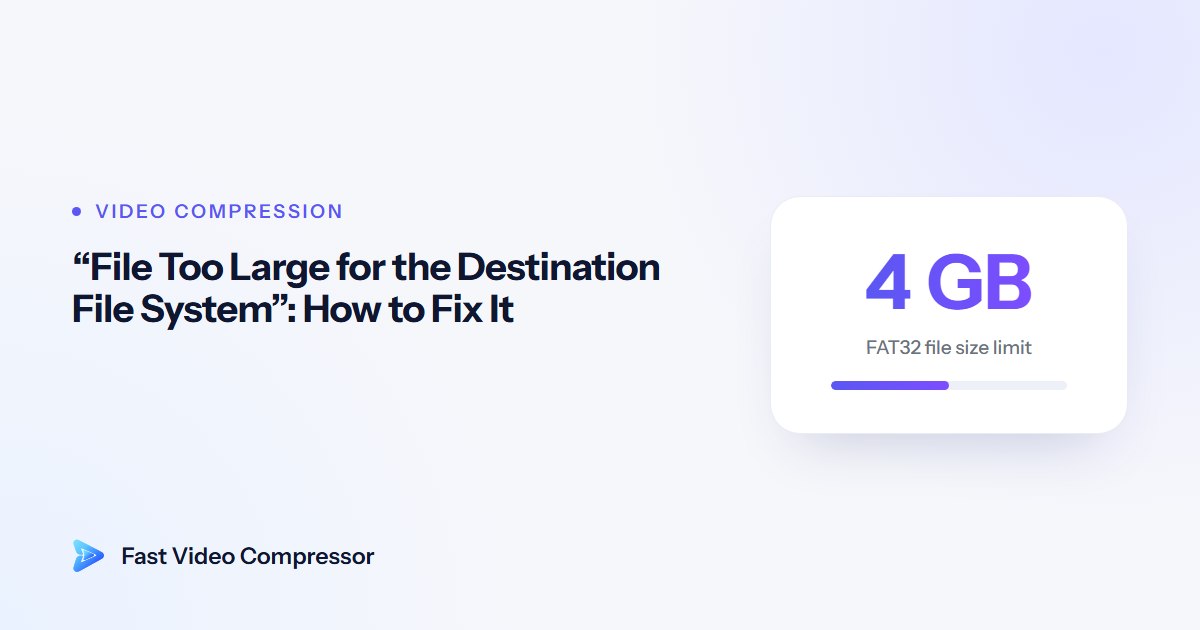
Why it happens: FAT32's 4 GB limit
Most USB sticks and many SD cards come formatted as FAT32, because almost everything can read it: TVs, car stereos, cameras, game consoles and old computers. But FAT32 can't hold any single file bigger than 4 GB. Microsoft's file system comparison lists its maximum file size as 4 GiB, against an effectively unlimited size for exFAT and NTFS.
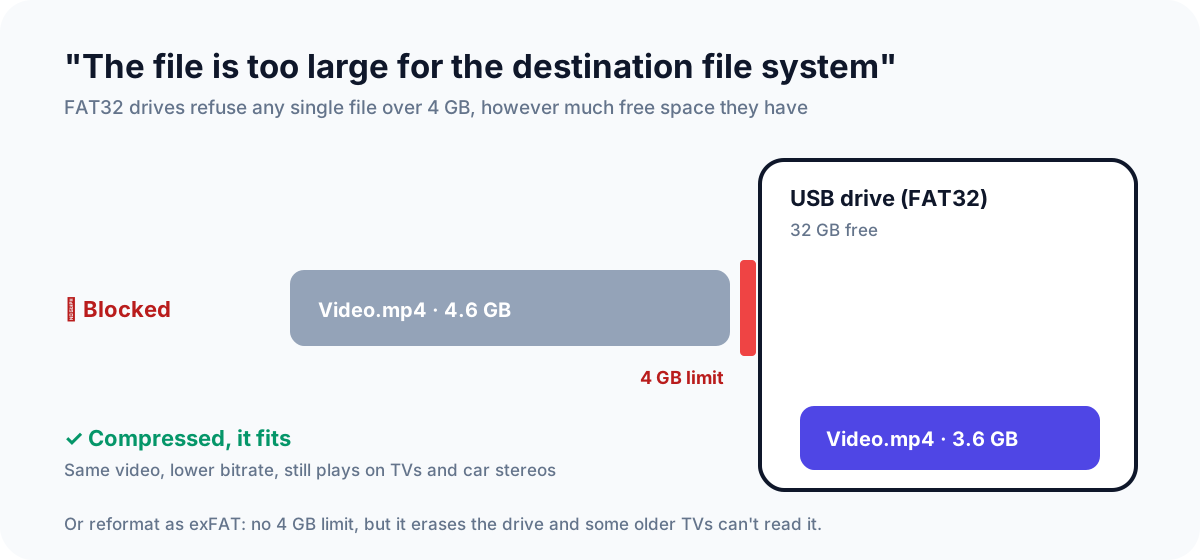
Videos cross that line easily. A two-hour film, a long screen recording, or a few minutes of 4K from a phone can all be over 4 GB. Windows won't split the file for you, so the copy just fails.
First, check your drive's format
- In File Explorer, right-click the USB drive and choose Properties.
- Look at File system on the General tab.
If it says FAT32, carry on below. If it says exFAT or NTFS, skip to If the drive isn't FAT32.
Three ways to fix it
| Fix | Keeps what's on the drive? | Plays on TVs and car stereos? | Best when |
|---|---|---|---|
| Compress the video under 4 GB | Yes | Yes | The video has to play on another device |
| Reformat the drive as exFAT | No, it erases the drive | Most newer ones; check older models | The drive is mainly for big files from now on |
| Split the video into parts | Yes | Yes, as separate files | You can't accept any quality loss |
Fix 1: Compress the video below 4 GB
This leaves the drive alone and gives you a single file that plays anywhere FAT32 does. Getting under 4 GB rarely needs a big quality cut, because most large videos have far more data than they need.
Here's how much bitrate (data per second) a video can use and still fit, aiming for 3.8 GB to leave a margin:
| Video length | Total bitrate that fits in 3.8 GB | Enough for |
|---|---|---|
| 1 hour | about 8,400 kbps | 1080p with room to spare |
| 2 hours | about 4,200 kbps | 1080p, looks good for most films |
| 3 hours | about 2,800 kbps | 1080p for calm footage, or 720p |
For comparison, YouTube recommends 8 Mbps for uploading 1080p video, and a well-compressed 1080p copy for watching usually needs 2,000–5,000 kbps. So for most videos, fitting under 4 GB means no visible loss at all. If you want to understand the numbers, our guide to what video bitrate is explains them.
With Fast Video Compressor
Fast Video Compressor shows the estimated size before you start, so you know it will fit:
- Add the video. A file that triggers this error is over 4 GB, which is above the free edition's 2 GB limit, so this needs Pro, which has no size limit.
- Choose Best Quality or Balanced. You only need to get under 4 GB, so there's no reason to squeeze hard.
- Check the estimated size. Aim for 3.8 GB or less.
- Click Start Compression, then copy the new file to the drive.
 Recommended DownloadDownload Fast Video Compressor - Free for Windows 10 & 11Download free
For free, with HandBrake
HandBrake has no file size limit. Choose Avg Bitrate on the Video tab and enter a bitrate from the table above, minus about 160 kbps for the audio, with multi-pass encoding switched on. Our guide to compressing a video with HandBrake walks through it.
Keep the output as MP4 with H.264 if the video is going to a TV or car stereo. Newer codecs such as H.265 make smaller files, but older players often can't play them, as our H.264 vs H.265 comparison explains.
Fix 2: Reformat the drive as exFAT
exFAT was designed for flash drives. It has no practical file size limit and works on Windows, Macs and most TVs from the last several years.
- Copy everything off the drive first. Formatting erases it.
- In File Explorer, right-click the drive and choose Format.
- Set File system to exFAT, leave the allocation unit size at the default, tick Quick Format and click Start.
Check first: some older TVs, car stereos, cameras and media players can't read exFAT. If the drive is mainly for one of those, compressing (Fix 1) is safer.
What about NTFS?
NTFS also has no 4 GB limit, and it's what Windows uses for its own drives. It's a poor choice for a USB stick you plug into other things: many TVs and car stereos can't read it, and Macs can read NTFS drives but can't write to them without extra software. Use exFAT unless the drive only ever connects to Windows PCs.
Fix 3: Split the video into parts
You can cut a long video into pieces under 4 GB with a video editor and play them one after another. It keeps the original quality, but it's clumsy to watch and easy to get out of order.
Avoid splitting with a file archiver such as 7-Zip. That creates pieces that must be joined back together on a computer before anything can play them, which defeats the point for a TV.
If the drive isn't FAT32
If File Explorer says the drive is exFAT or NTFS and you still get "the file is too large", the 4 GB rule isn't the cause. Two common explanations:
- The file really is bigger than the free space. Check the drive's free space in Properties against the file's size. Remember that a "64 GB" drive shows less than 64 GB in Windows.
- The drive is counterfeit. Cheap drives are sometimes faked to report more capacity than they actually have, and they fail when you fill them. On Super User, this exact error on a non-FAT32 drive is described as a sign of a fake or broken drive. A free tool such as H2testw writes test data across the whole drive to check its real capacity. If it fails, replace the drive.
Common questions
Why can't FAT32 hold files over 4 GB?
It's built into how FAT32 records file sizes, a design that dates from the 1990s. No setting changes it. The only ways around it are a smaller file or a different file system.
Will exFAT work on my TV?
Most TVs from the last several years read exFAT. Older TVs, car stereos and some cameras don't, so check the manual or the manufacturer's support page before reformatting.
Can I convert FAT32 to exFAT without losing my files?
Not with Windows' built-in tools. Reformatting erases the drive, so copy your files somewhere else first and copy them back afterwards.
Does compressing a video to fit under 4 GB lose quality?
Very little in most cases. A two-hour video can still use about 4,200 kbps and fit, which is plenty for 1080p. Choose a high-quality setting rather than the smallest possible file.
Why does my 64 GB drive refuse a 5 GB file?
Because it's formatted as FAT32, which limits individual files to 4 GB regardless of the drive's size. Compress the file or reformat the drive as exFAT.
Sources
- Microsoft Learn: File system functionality comparison
- YouTube Help: Recommended upload encoding settings
- Super User: File is too large for destination filesystem when the drive is not FAT32
- heise: H2testw