Why is one five-minute video 50 MB and another 1 GB? Almost always, the answer is bitrate. It's the most important number in video compression, and once you understand it, file sizes stop being a mystery.
This guide explains what bitrate is, how to turn it into a file size, how to find it for any video on your PC, and what our own tests show about how much bitrate a video actually needs.
Bitrate in one sentence
Bitrate is how much data a video stores for every second you watch.
- A higher bitrate keeps more detail per second and makes a bigger file.
- A lower bitrate makes a smaller file and, eventually, visible blocks and smearing.
It's written in kbps (kilobits per second) or Mbps (megabits per second); 1 Mbps = 1,000 kbps. Note the lowercase *b*: these are bits, not bytes. There are 8 bits in a byte, which is why a "10 Mbps" video uses about 1.25 megabytes each second.
How to work out file size from bitrate
File size (MB) ≈ total bitrate (kbps) × length (seconds) ÷ 8,000
Example: a 2-minute (120-second) video at 2,000 kbps:
2,000 × 120 ÷ 8,000 = 30 MB
Dividing by 8 turns bits into bytes, and dividing by 1,000 turns kilo into mega. "Total" means video plus audio. Audio is usually 96–192 kbps, which matters on small files: for a Discord or email-sized clip it can be a tenth of the budget.
Working the other way is just as useful. If a file must fit under a limit, multiply the size in MB by 8,000 and divide by the length in seconds to get the bitrate you can afford. Our file size calculator does this for you, and our guide to compressing a video for email shows it applied to a real limit.
How to check a video's bitrate on Windows
- Right-click the video in File Explorer and choose Properties.
- Open the Details tab.
- Under Video, look at Data rate (the video bitrate) and Total bitrate (video plus audio).
Some formats, such as MKV, don't show these figures. Free tools like MediaInfo will read the bitrate from almost any file.
Typical bitrates
| Video | Typical bitrate | About 1 minute |
|---|---|---|
| iPhone, 4K at 30 fps, High Efficiency (H.265) | about 23 Mbps | about 170 MB |
| iPhone, 1080p at 30 fps, High Efficiency (H.265) | about 8 Mbps | about 60 MB |
| YouTube's recommended upload, 1080p at 30 fps | 8 Mbps | 60 MB |
| YouTube's recommended upload, 720p at 30 fps | 5 Mbps | about 38 MB |
| Compressed 1080p for sharing | 2–5 Mbps | 15–38 MB |
| Compressed 720p for sharing | 0.8–2 Mbps | 6–15 MB |
The iPhone figures are approximate and vary by model; your phone lists its own under Settings > Camera > Record Video. YouTube's figures come from its recommended upload encoding settings. YouTube asks for high bitrates because it re-compresses everything you upload, and a cleaner starting file gives a cleaner result.
Cameras and phones record at high bitrates so nothing is lost while filming. For watching and sharing, much of that data is unnecessary, which is why compression can shrink these files so much.
Is a higher bitrate always better?
No, and this is the part most explanations skip. Each extra kilobit buys less improvement than the one before.
We tested this by encoding a 1080p clip of the animated film *Big Buck Bunny* at four bitrates with H.264, and scoring each with VMAF, Netflix's video quality metric (100 = identical to the original):
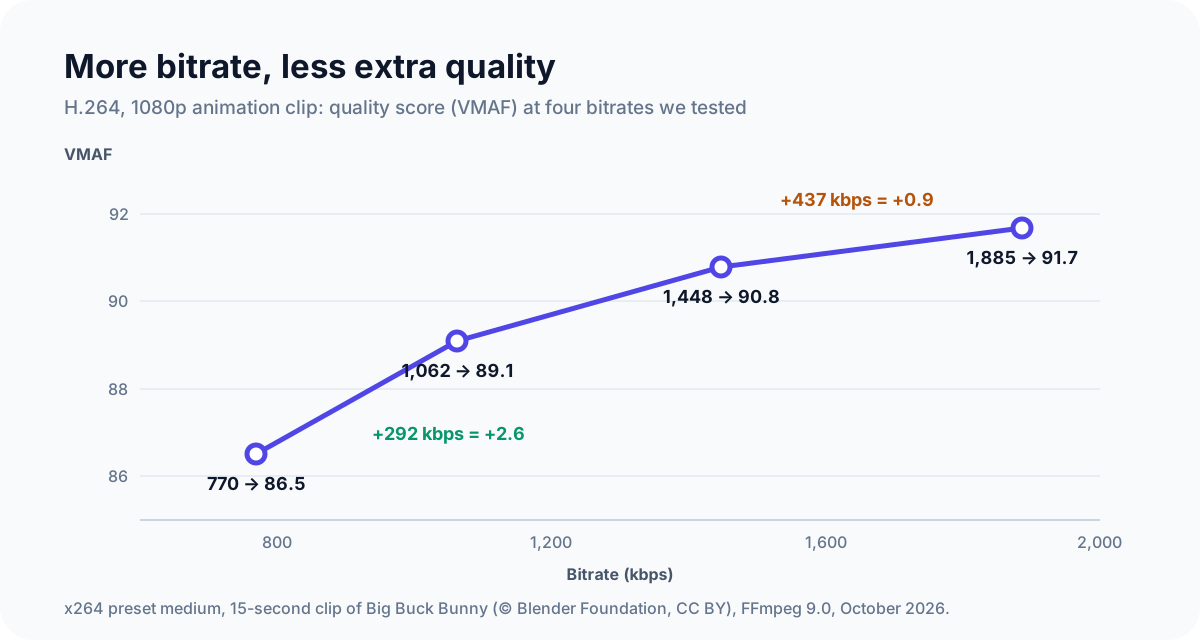
| Bitrate | Quality (VMAF) | Gain from the step before |
|---|---|---|
| 770 kbps | 86.5 | - |
| 1,062 kbps | 89.1 | +2.6 for 292 more kbps |
| 1,448 kbps | 90.8 | +1.7 for 386 more kbps |
| 1,885 kbps | 91.7 | +0.9 for 437 more kbps |
The first extra 300 kbps made a clear difference. The last 437 kbps made the file 30% bigger for a change most people wouldn't see. Good compression aims for the point where the curve flattens: that's the size where quality is still high and every extra megabyte stops paying off.
Where that point sits depends on the video:
- Slow, simple scenes (a talking head, slides, a mostly still screen) look clean at low bitrates.
- Fast or detailed scenes (sports, games, water, foliage, film grain) need much more. In the same test, a live-action clip with natural film grain needed about the same bitrate as the cartoon to score far lower, because grain is detail the codec has to keep.
Bitrate vs resolution
Resolution is how many pixels each frame has: 1920×1080 for 1080p. Bitrate is how much data describes those pixels each second. Spread the same bitrate over fewer pixels and each one gets more data:
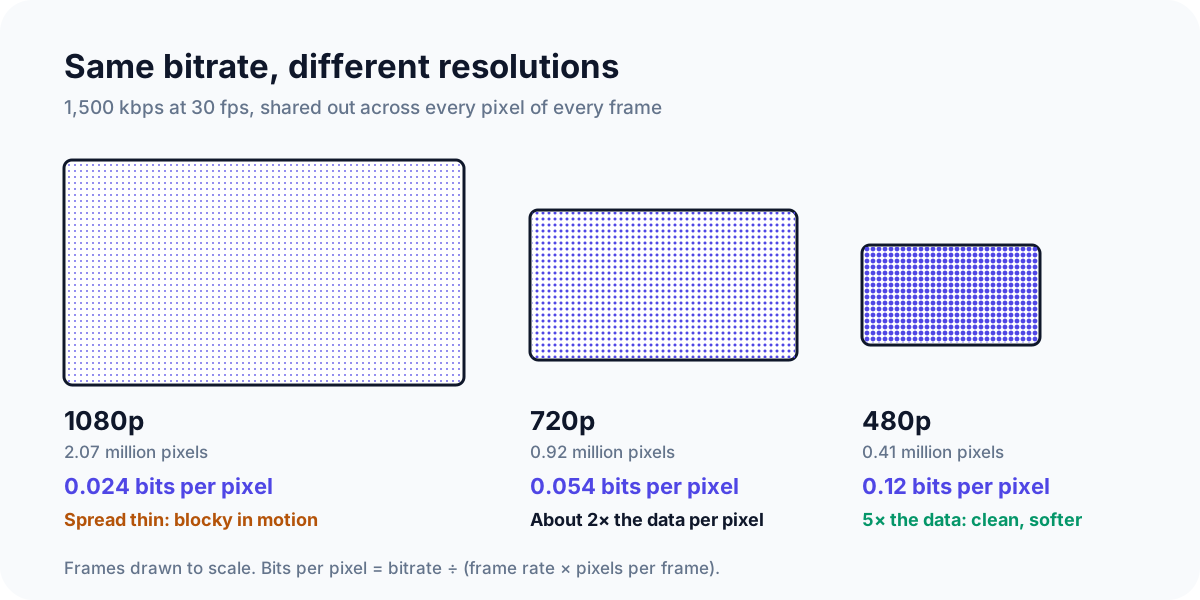
That's why a 720p video at a modest bitrate often looks better than a 1080p video at the same bitrate. When you need a small file, lowering the resolution is often the smarter move than squeezing the bitrate.
Same bitrate, different codecs
A bitrate number only means something alongside the codec, the method used to compress the video. Newer codecs pack more quality into each kilobit. In our tests, H.265 matched H.264's quality on a live-action clip using 37% less bitrate. So 1,000 kbps of H.265 isn't the same as 1,000 kbps of H.264. Our H.264 vs H.265 comparison has the full results.
Constant bitrate, variable bitrate and constant quality
- Constant bitrate (CBR) uses the same data every second, even when nothing on screen is changing. It's predictable, which is why live streaming uses it, but it wastes space in files.
- Variable bitrate (VBR) uses more data for complex moments and less for simple ones, around an average you choose. It's the right choice when a file must hit a particular size.
- Constant quality (called CRF or RF in many tools) does it the other way round: you choose the quality, and the bitrate goes wherever it needs to. It gives the best result for the size, but you don't know the size in advance. Our guide to compressing a video with HandBrake shows both modes in practice.
Choosing a bitrate without the guesswork
There's no single correct bitrate, because the right number depends on what's in the video. Fast Video Compressor analyzes each video and suggests a bitrate for the goal you pick (Smallest File, Balanced or Best Quality), then shows the estimated output size before you start. If you need an exact size, you can enter your own bitrate instead.
 Recommended DownloadDownload Fast Video Compressor - Free for Windows 10 & 11Download free
Common questions
Does lowering the bitrate reduce quality?
Yes, eventually. The aim of good compression is to lower it only as far as you can without seeing a difference, which is usually well below what a phone or camera records at.
Why are two videos of the same length different sizes?
Because they have different bitrates. A phone recording at 8 Mbps and a compressed copy at 2 Mbps of the same scene differ in size by four times.
What's the difference between kbps and KB/s?
kbps is kilobits per second; KB/s is kilobytes per second. There are 8 bits in a byte, so 8,000 kbps is 1,000 KB/s, or 1 MB per second.
What is a good bitrate for 1080p?
For a compressed copy to share or keep, 2,000–5,000 kbps with H.264 suits most videos, with fast action toward the top of that range. For uploading to YouTube, follow its recommendation of 8 Mbps at 30 fps or 12 Mbps at 60 fps.
What bitrate should audio use?
For speech, 96 kbps AAC is usually enough; for music, 128–192 kbps. YouTube recommends 384 kbps for stereo uploads, because it re-compresses the audio too.
Sources and method
- Our test: 15-second, 1080p section of *Big Buck Bunny* and *Tears of Steel* (© Blender Foundation, CC BY), encoded from a lossless copy with x264 at preset medium (CRF 20–29) in FFmpeg 9.0 and scored with VMAF, October 2026.
- YouTube Help: Recommended upload encoding settings
- iPhone recording sizes: approximate figures shown in iPhone's Record Video settings; they vary by model and iOS version.
- MediaArea: MediaInfo