MOV files come from iPhones, Macs, cameras and editing apps, and they don't play or upload everywhere. Most guides send you to an online converter or tell you to re-export the video. Often that's unnecessary: the video inside a MOV is usually something MP4 can hold as it is.
Here's how to tell what's inside your MOV, the fastest lossless way to turn it into an MP4 on Windows, and the cases where converting properly is worth it.
First: what's inside your MOV?
MOV and MP4 are both containers, boxes for the video and audio. MP4 was even built on Apple's MOV format. What matters is the codec inside, and it decides what you should do:
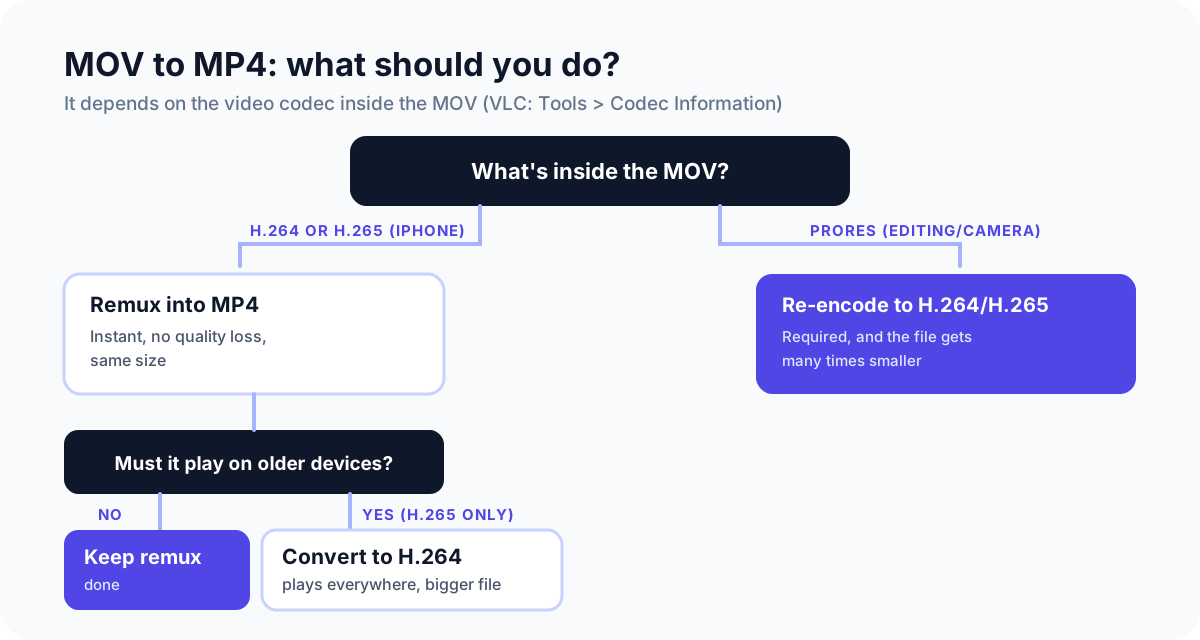
To check the codec, open the file in VLC and choose Tools > Codec Information, or use the free MediaInfo. You'll see one of these:
| Codec inside the MOV | Where it comes from | What to do |
|---|---|---|
| H.265 (HEVC) | iPhone, High Efficiency setting (the default) | Remux to MP4 (lossless) |
| H.264 (AVC) | iPhone Most Compatible setting, many cameras | Remux to MP4 (lossless) |
| ProRes | Editing apps, iPhone Pro models in ProRes mode, cameras | Re-encode to H.264 or H.265 |
We tested it: a lossless MOV to MP4
We took an H.265 video in a MOV, the same format as an iPhone recording, and remuxed it into an MP4. We then compared both with the original film using VMAF, Netflix's video quality score:
| File | Size | Quality (VMAF) |
|---|---|---|
| Original H.265 MOV | 1.37 MB | 73.4 |
| Remuxed to MP4 | 1.37 MB | 73.4 (identical) |
| Converted to H.264 MP4 instead | 3.19 MB | 71.5 |
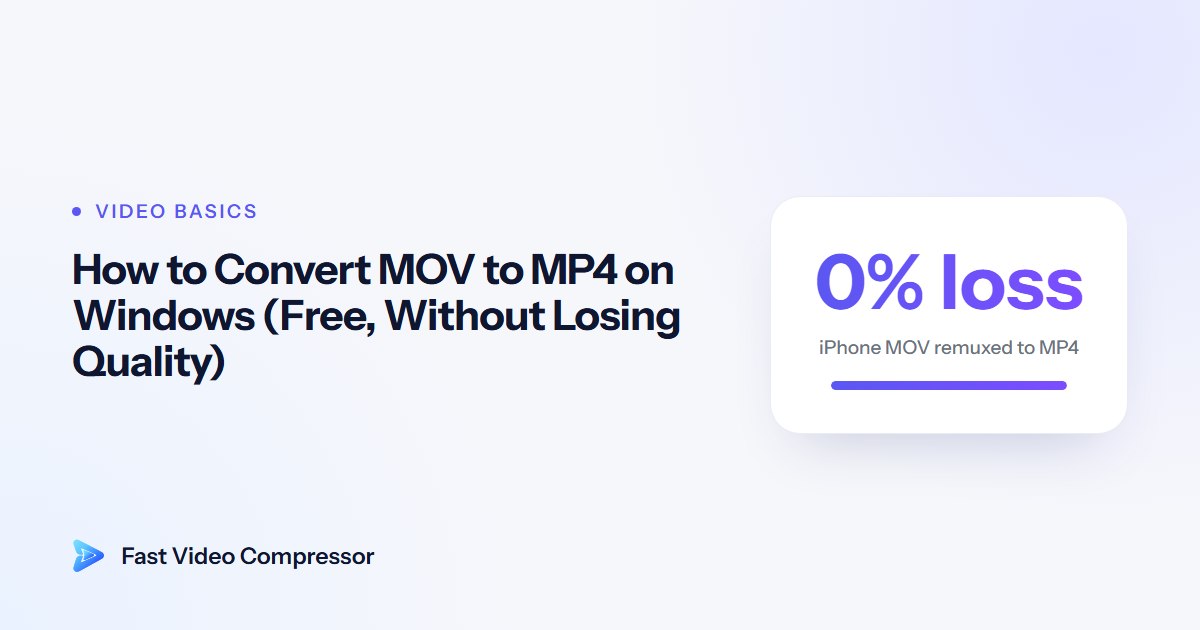
The remuxed MP4 was the same video, bit for bit, in a different box. Converting to H.264, which most online converters do, made the file 2.3 times bigger and slightly worse. It also took longer.
The free, lossless way: FFmpeg
FFmpeg is the free engine behind most video apps. You only need one command.
- Install it: open Terminal and run
winget install Gyan.FFmpeg, then open a new Terminal window. - In File Explorer, Shift + right-click inside the folder with your video and choose Open in Terminal.
- For an iPhone (H.265) video, run:
ffmpeg -i input.mov -map 0:v -map 0:a? -c copy -tag:v hvc1 output.mp4- For an H.264 MOV, leave out the last option:
ffmpeg -i input.mov -map 0:v -map 0:a? -c copy output.mp4-c copy copies the video and audio without re-encoding. -map 0:v -map 0:a? keeps only the video and audio, because iPhone MOVs also carry data tracks (such as camera metadata) that MP4 can't hold and that otherwise cause an error. -tag:v hvc1 labels H.265 video the way Apple devices and QuickTime expect, so the MP4 also plays on iPhones and Macs.
Have an MKV file instead? The same idea works; see how to convert MKV to MP4 without losing quality.
To convert a whole folder at once, use this in Command Prompt: for %f in (*.mov) do ffmpeg -i "%f" -map 0:v -map 0:a? -c copy "%~nf.mp4".
When you need to really convert
The other person can't play H.265
Some older PCs, TVs and apps can't play H.265 (HEVC). On Windows you can often fix playback without converting by installing the HEVC Video Extensions from the Microsoft Store. If the video is going to someone else's device, convert it to H.264, which plays everywhere. Expect a bigger file, as our test shows; our H.264 vs H.265 comparison explains why.
The MOV holds ProRes
ProRes is an editing format, and it's huge: Apple's ProRes white paper puts ProRes 422 HQ at about 220 megabits per second for 1080p. Re-encoding it to H.264 or H.265 is required for sharing, and the file shrinks dramatically.
You also want a smaller file
Then re-encode and compress in one go:
- HandBrake (free): open the MOV, choose Fast 1080p30, keep MP4, and click Start Encode. See our guide to compressing a video with HandBrake.
- Fast Video Compressor Pro opens MOV files, including iPhone video, shows the estimated size before you start, and saves a compact MP4. The free edition works with MP4 files, so you can remux first with the command above and then compress the MP4 free.
 Recommended DownloadDownload Fast Video Compressor - Free for Windows 10 & 11Download free
Other options, and their catch
- VLC (Media > Convert / Save) works but re-encodes, which is slow and loses some quality; some users report stretched or resized video.
- Online converters mean uploading the whole video first, and phone videos are often hundreds of megabytes. For private videos, check how long the site keeps files: CloudConvert's privacy policy says within 24 hours.
- On a Mac, Apple's own instructions for converting MOV to MP4 with iMovie re-export the video.
- Renaming the file from .mov to .mp4 doesn't convert anything, and some players will refuse to open it.
Avoid the problem next time (iPhone)
If you often send videos to Windows or Android users, you can make your iPhone record H.264 instead: Settings > Camera > Formats > Most Compatible. The files are bigger, but they play almost everywhere. And when copying videos to a PC, Apple notes that Settings > Apps > Photos > Keep Originals stops them being converted on the way.
Common questions
Does converting MOV to MP4 lose quality?
Not when you remux it, because the video is copied unchanged; our test showed identical quality. Converters that re-encode lose a little quality, and converting H.265 to H.264 also makes the file bigger.
Is MP4 smaller than MOV?
Not by itself. With the same video inside, the size is essentially the same. MOV files only look bigger when they contain an editing format like ProRes.
Why is my iPhone video a MOV file?
Apple's camera saves video in the MOV container. With the default High Efficiency setting, the video inside is H.265 (HEVC); with Most Compatible it's H.264.
Can Windows play MOV files?
Yes, Media Player and VLC play most MOV files. iPhone videos in H.265 may need the HEVC Video Extensions from the Microsoft Store to play in Media Player.
How do I convert MOV to MP4 without any software?
Windows has no built-in lossless converter. Online converters need no install but require uploading the video. The FFmpeg method above is free, offline and lossless, and takes one command.
Sources and method
- Our test: a 15-second H.265 clip of *Tears of Steel* (© Blender Foundation, CC BY) in a MOV container, remuxed to MP4 and converted to H.264 (x264 CRF 23) with FFmpeg 9.0, quality scored with VMAF against a lossless copy, October 2026. Commands tested on H.265 and H.264 MOV files.
- Apple: Using HEIF or HEVC media on Apple devices, Convert a MOV file to MP4 on Mac, Apple ProRes white paper
- Microsoft Store: HEVC Video Extensions
- MediaArea: MediaInfo
- CloudConvert: Privacy policy