
You have an MKV file and something won't accept it: your phone, an editing app, a website upload. Search for a converter and you'll mostly find upload sites and apps that re-encode the whole video. That's slow, it loses some quality, and for most MKV files it isn't necessary at all.
This guide explains the difference, shows you the free, lossless way to switch an MKV to MP4 on Windows, and covers the cases where you really do need to convert.
Why MKV won't play everywhere
MKV (Matroska) is an excellent, open format, and Windows 10 and 11 play it fine. The problem is everywhere else: iPhones and iPads don't play MKV natively, many editing apps won't import it, and it isn't on YouTube's list of supported upload formats. MP4 plays almost everywhere, which is why people convert.
The key point is that MKV and MP4 are only containers: boxes that hold the video and audio tracks. Most MKV files already contain H.264 or H.265 video and AAC or AC-3 audio, which MP4 can hold too. So you don't need to change the video, only the box.
Remux vs re-encode: what we measured
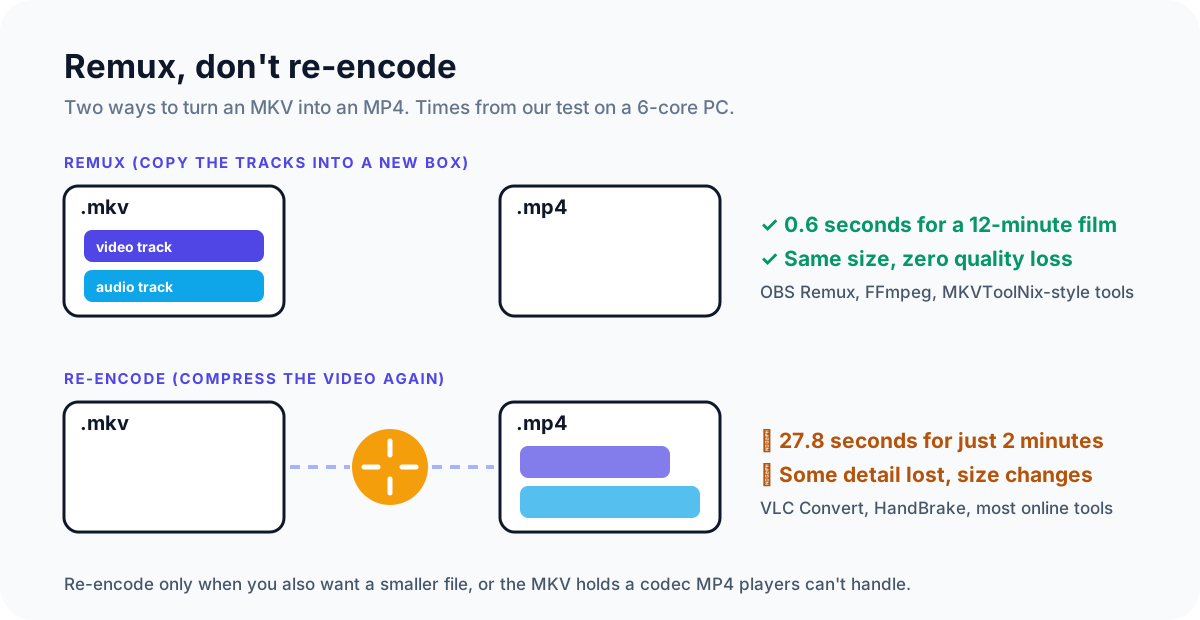
We tested both on the 12-minute, 1080p film *Tears of Steel* (584 MB), on a 6-core Windows PC:
| Method | Time | Size | Quality |
|---|---|---|---|
| Remux (copy tracks into MP4) | 0.6 seconds for the whole 12-minute film | Same (584 MB to 584 MB) | Identical |
| Re-encode (H.264, medium speed) | 27.8 seconds for just 2 minutes | Changes | Some detail lost |
Re-encoding the whole film would take several minutes; remuxing is effectively instant. That's why remuxing should be your first choice.
Way 1: OBS recordings (one click)
If your MKV came from OBS Studio, OBS can remux it for you:
- In OBS, open File > Remux Recordings.
- Click the ... button and pick your MKV file.
- Click Remux. The MP4 appears next to the original.
To skip this step in future, newer versions of OBS (30.2 and later) can record Hybrid MP4, which OBS describes as recoverable after a crash, like MKV, while staying widely compatible.
Way 2: FFmpeg (any MKV, lossless)
FFmpeg is the free tool that powers most video apps, including OBS and HandBrake. It runs from the command line, but you only need one command.
- Install it: open Terminal (or Command Prompt) and run
winget install Gyan.FFmpeg, then open a new Terminal window. - Go to the folder with your video: type
cdfollowed by the folder path, or Shift + right-click inside the folder in File Explorer and choose Open in Terminal. - Run this, replacing the file names:
ffmpeg -i input.mkv -map 0 -c copy -c:s mov_text output.mp4What each part does: -map 0 keeps every track (all audio languages and subtitles), -c copy copies the video and audio without re-encoding, and -c:s mov_text converts text subtitles into the format MP4 understands.
Why not just `-c copy`? We tested it: a plain ffmpeg -i input.mkv -c copy output.mp4 succeeded but silently dropped the subtitles, and it keeps only one audio track. If you add -map 0 without -c:s mov_text, it fails with *"Could not find tag for codec subrip … codec not currently supported in container"*. The command above avoids both problems.
If FFmpeg still shows an error
- Picture-based subtitles (common on Blu-ray rips, called PGS): MP4 can't hold them. Add
-snto leave subtitles out:ffmpeg -i input.mkv -map 0 -sn -c copy output.mp4. - The MP4 plays with no sound on a phone or TV: the audio is probably DTS or FLAC, which many players don't support in MP4. Keep the video as it is and convert only the audio to AAC:
ffmpeg -i input.mkv -map 0 -c:v copy -c:a aac -b:a 192k -c:s mov_text output.mp4. - The video is VP9 or an older codec: remuxing works for MP4-compatible codecs. Otherwise, re-encode with Way 3.
Way 3: Re-encode with HandBrake (free) or a compressor
Re-encoding makes sense when you also want a smaller file, or the MKV holds a codec that MP4 players can't handle.
- HandBrake is free: open the MKV, choose a preset such as Fast 1080p30, keep the format as MP4, and click Start Encode. Our guide to compressing a video with HandBrake explains the quality settings.
- Fast Video Compressor Pro opens MKV directly, shows the estimated size before you start, and saves a compact MP4. (The free edition works with MP4 files.)
 Recommended DownloadDownload Fast Video Compressor - Free for Windows 10 & 11Download free
What about VLC and online converters?
VLC can convert through Media > Convert / Save, but it re-encodes the video, which is slow, and some users report the picture ending up stretched or with the wrong dimensions. It's fine in a pinch; remuxing is better.
Online converters work for small files, but you have to upload the whole MKV first, and MKVs are often several gigabytes. Many also re-encode. If the video is private, check how long the site keeps uploads: CloudConvert's privacy policy, for example, deletes them within 24 hours.
Common questions
Does converting MKV to MP4 lose quality?
Not if you remux it, because the video data is copied unchanged. Converters that re-encode do lose a little quality each time.
Is MP4 smaller than MKV?
No. With the same video inside, they're practically the same size; in our test the difference was a fraction of a percent. To make a file smaller you have to re-compress it.
Can Windows play MKV files without converting?
Yes. Windows 10 and 11 play MKV in Media Player, and VLC plays almost any MKV. You only need MP4 for other devices, apps or uploads.
Why does my converted MP4 have no subtitles?
Most tools copy only the main video and audio, and MP4 can't hold some subtitle formats. Use the FFmpeg command above with -map 0 and -c:s mov_text, or burn the subtitles into the picture with HandBrake.
Can I convert many MKV files at once?
Yes. In OBS, Remux Recordings accepts several files. With FFmpeg, run this in the folder (Command Prompt): for %f in (*.mkv) do ffmpeg -i "%f" -map 0 -c copy -c:s mov_text "%~nf.mp4".
Sources and method
- Our test: *Tears of Steel* (© Blender Foundation, CC BY), 12 minutes, 1080p, 584 MB, remuxed and re-encoded with FFmpeg 9.0 on a 6-core Intel Core i5 PC, October 2026. Subtitle behavior tested with an SRT subtitle track.
- YouTube Help: Supported YouTube file formats
- OBS: Hybrid MP4 format
- CloudConvert: Privacy policy