Email is still the simplest way to send a video to someone who doesn't use chat apps: a client, a teacher, a relative. The problem is the size. A one-minute video from a modern phone is often 100 MB or more, and most email services stop at 25 MB.
This guide shows you what the real limits are, how long a video can be and still fit, and three free ways to shrink it on Windows. It also covers the point where compressing stops making sense and a link works better.
Email attachment limits in 2026
| Email service | Limit | What happens if it's bigger |
|---|---|---|
| Gmail (personal) | 25 MB | Gmail uploads it to Google Drive and sends a link instead |
| Outlook.com | 25 MB for the whole email, text included | You're offered a OneDrive link instead |
| Yahoo Mail | 25 MB for all attachments combined | The email won't send |
| iCloud Mail | 20 MB | Mail Drop can send up to 5 GB as a download link |
These figures come from each provider's own help pages, linked in the sources at the end. Two things make the real limit lower than it looks:
- The other person's limit counts too. Your email has to fit through their mail server as well as yours. Work and school accounts often have their own limits set by an administrator.
- Attachments get bigger in transit. Email turns files into text to send them, which makes them roughly a third larger on the way. Some services count that, some don't.
That's why 18 MB is the safe target. It fits every service in the table, with room left for the encoding and your message.
How much video fits in 18 MB?
File size is just how much data each second of video uses (the bitrate) multiplied by the length. 18 MB gives you about 144,000 kilobits to spend, so the longer the video, the less each second gets. When each second gets too little, a lower resolution keeps the picture clean instead of blocky.
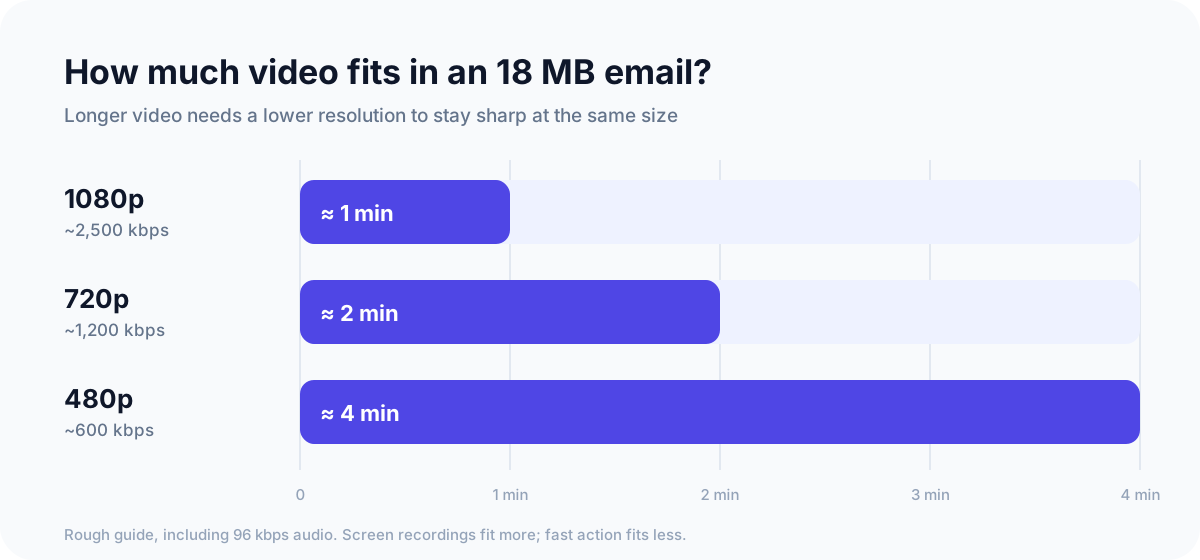
| Resolution | Bitrate (video + audio) | Fits in 18 MB |
|---|---|---|
| 1080p | about 2,500 kbps | about 1 minute |
| 720p | about 1,200 kbps | about 2 minutes |
| 480p | about 600 kbps | about 4 minutes |
Treat these as a guide, not a promise. A screen recording or a talking head against a still background fits more, because little changes between frames. A phone video of kids running around a garden fits less. If you need an exact figure for your video, our file size calculator works it out from the length and the target size.
Way 1: Fast Video Compressor (shows the size before you compress)
The hardest part of compressing for email is guessing whether the result will fit. Fast Video Compressor, a free offline app for Windows, shows the estimated size before it starts, so you don't have to guess.
- Add your video. Drag it into the app or click to browse. The free edition works with MP4 files up to 2 GB.
- Pick Smallest File. It's tuned for email and chat apps.
- Choose a resolution. 720p for clips over a minute, 480p for longer ones (see the table above).
- Check the estimated size. The app shows a range. If the top of the range is under 18 MB, it will fit.
- Compare before you save. Use the side-by-side preview on a busy moment, and check that faces and on-screen text are still clear.
- Click Start Compression. The new file is saved next to the original, which stays untouched.
 Recommended DownloadDownload Fast Video Compressor - Free for Windows 10 & 11Download free
Way 2: Clipchamp, already on Windows 11
Windows 11 comes with Clipchamp, Microsoft's video editor, and its free plan can export at 480p, 720p or 1080p. It doesn't let you choose a file size, but a lower resolution plus trimming often gets a short clip under 18 MB.
- Open Clipchamp from the Start menu and create a new video.
- Drag your video into the media panel, then onto the timeline.
- Trim anything you don't need. Cutting the length is the most effective way to cut the size.
- Click Export at the top right and pick 480p or 720p.
- Check the size: right-click the exported file in File Explorer and choose Properties. If it's still over 18 MB, export again at 480p or trim more.
The catch is that you only find out the size after exporting, and Clipchamp may ask you to sign in with a Microsoft account.
Way 3: HandBrake, for exact control
HandBrake is free and lets you aim for a precise size. Its Social 25 MB presets (under Web in the preset list) are built to stay under 25 MB for a given length: 30 seconds at 1080p, 1 minute at 720p, 2 minutes at 540p or 5 minutes at 360p. For the 18 MB target, use Avg Bitrate mode with the bitrate from the table above.
It's more technical than the other two. Our guide to compressing a video with HandBrake walks through the settings, including how to work out the bitrate for any size limit.
Why zipping the video doesn't work
A lot of advice online says to put the video in a ZIP file. On Windows that's Send to > Compressed (zipped) folder. It sounds sensible, but it barely changes anything.
ZIP works by finding repeated patterns in a file and storing them once. Video files have already been through a far more aggressive version of that process, so there's almost nothing left for ZIP to find. When we zipped five MP4 files at maximum compression, every ZIP came out less than 1% smaller than the video inside it. The person receiving it also has to unzip it before they can watch.
To make a video meaningfully smaller, you have to re-compress the video itself: a lower bitrate, a lower resolution, or a shorter clip.
When to send a link instead
Once a video is longer than about four minutes, squeezing it into 18 MB makes it blurry and blocky. Send a link instead.
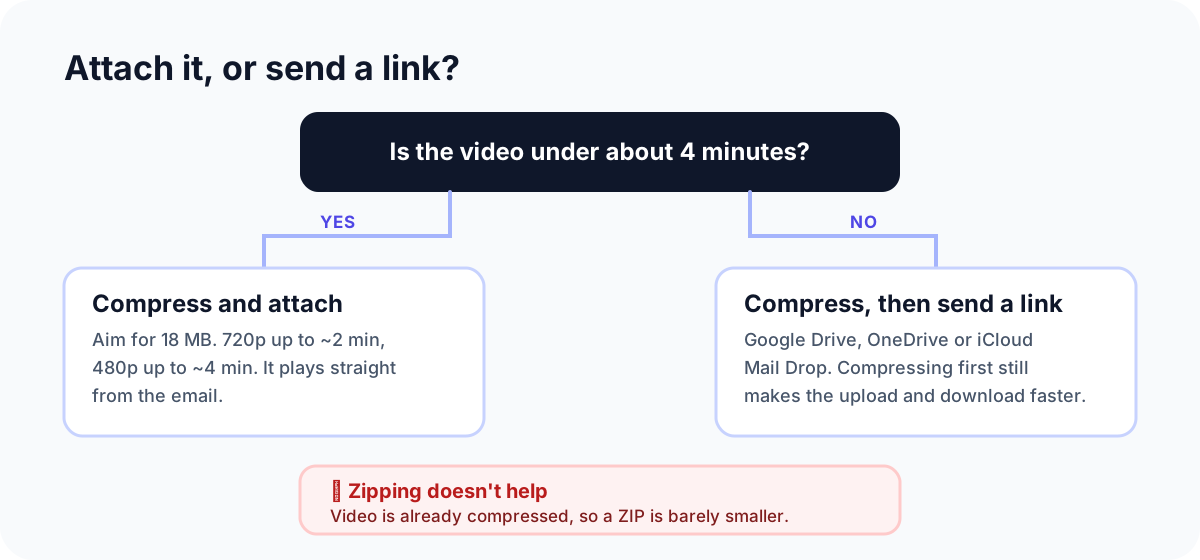
- Gmail does this for you. Attach a file over 25 MB and it uploads it to Google Drive and inserts a link. Check the sharing settings so the recipient can open it.
- Outlook.com offers to share large files through OneDrive.
- iCloud Mail uses Mail Drop for attachments up to 5 GB. The recipient gets a download link that lasts 30 days.
It's still worth compressing first, with a gentler setting that keeps the quality high. A 1 GB video that becomes 150 MB uploads in a fraction of the time, and the person you send it to downloads it faster too.
Before you hit Send
- Check the size in File Explorer. Right-click the file, choose Properties, and confirm it's under 18 MB.
- Watch it once, start to finish. Make sure the sound works and nothing looks smeared.
- Attach the compressed copy, not the original. They sit in the same folder with similar names, so it's easy to pick the wrong one.
- Send yourself a test if it matters. It's the only way to know it gets through your own provider's limits.
Common questions
Why does Gmail turn my attachment into a Drive link?
Because the file is over 25 MB. Gmail uploads it to your Google Drive and puts a link in the email instead. Compress the video below 25 MB, ideally to 18 MB, to attach it directly.
What's the attachment limit for Outlook?
Outlook.com allows 25 MB per email, counting the text and every attachment. Larger files can be shared as a OneDrive link. Work and school Microsoft 365 accounts can have different limits set by the organization.
Will the person need special software to play it?
Not if you send an MP4 with H.264 video, which is what Fast Video Compressor's free edition and Clipchamp create. It plays on every modern computer and phone without extra software.
Can I send several videos in one email?
Yes, but every attachment counts toward the same limit. Compress each one and keep the total under about 18 MB, or share a folder link for the whole set.
How do I email a video from my iPhone?
If you use iCloud Mail, attachments over 20 MB can go through Mail Drop as a link. For any other provider, the 25 MB limit still applies, so compress or trim the video first.
Sources
- Google: Gmail attachment size limits
- Microsoft: Unable to attach files in Outlook.com
- Yahoo: Message size limits in Yahoo Mail
- Apple: Mailbox size and message sending limits in iCloud and Mail Drop limits
- Microsoft: How to choose the right export resolution in Clipchamp
- HandBrake: Official presets