Search for "video compressor" and most results are websites: upload your file, wait, download the smaller version. They're convenient. But they aren't always the best choice, especially for big or private videos.
This is an honest comparison of both. Online tools have real advantages, and we'll say when they're the right pick.
How online compressors work
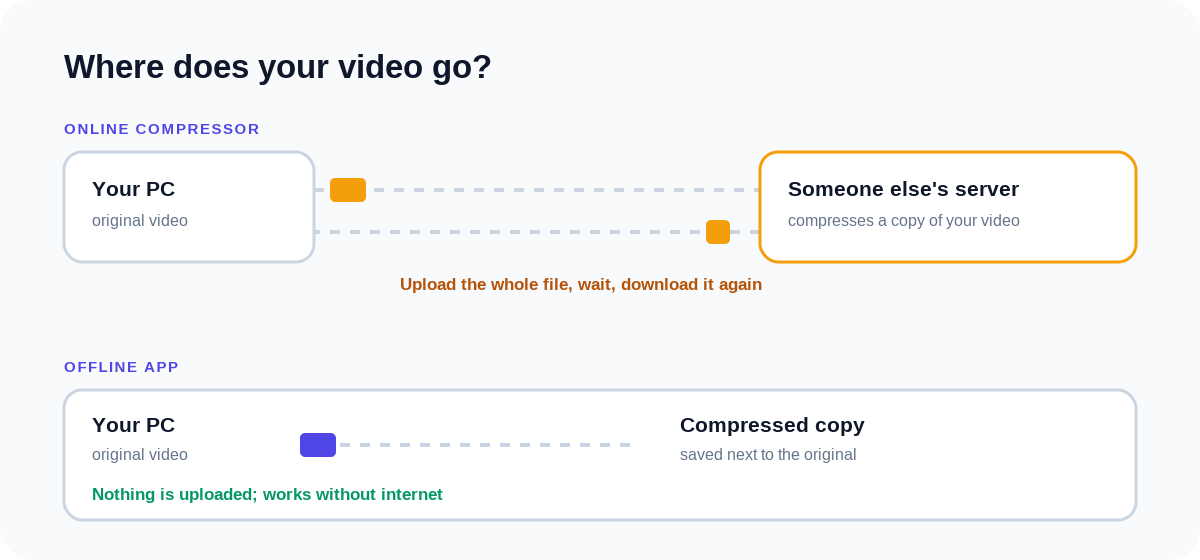
Most online compressors follow the same three steps:
- You upload your whole video to the website's server.
- The server compresses it.
- You download the result.
Some newer tools run the compression inside your browser instead of on a server. That avoids the upload, but it depends heavily on your browser and computer, and large files can be slow or crash the tab.
How offline compressors work
An offline compressor is an app on your computer. The video never leaves your PC: the app reads it from your drive, compresses it with your own processor (or graphics card) and saves the result next to the original.
Side by side
| Online compressor | Offline app on your PC | |
|---|---|---|
| Install needed | No | Yes, once |
| Upload and download time | Yes, for the whole file | None |
| File size limits | Often 100 MB–2 GB, or daily limits | Set only by the app and your drive |
| Privacy | Your video sits on someone else's server | Stays on your computer |
| Works without internet | No | Yes |
| Speed on large files | Limited by your connection | Limited by your PC |
| Watermarks or sign-ups | Common on free tiers | Depends on the app |
| Control over settings | Usually basic | Usually more |
The hidden cost: upload time
People often pick online tools because they seem quicker: no install. For small files, that's true. For big ones, the upload and download take most of the time.
Here's roughly how long just the upload takes:
| File size | Upload at 10 Mbps | Upload at 50 Mbps |
|---|---|---|
| 100 MB | about 1.5 minutes | about 20 seconds |
| 500 MB | about 7 minutes | about 1.5 minutes |
| 1 GB | about 14 minutes | about 3 minutes |
| 2 GB | about 28 minutes | about 6 minutes |
Then you wait for the server, and download the result too. Many home connections upload far slower than they download, so these times are often the best case. An offline app skips all of it and starts compressing immediately.
When an online compressor makes sense
- The video is small (a few dozen MB).
- It's not private.
- You're on a computer where you can't install apps, like a work or school PC.
- You only need to do it once.
When an offline compressor is the better choice
- Big files. Uploading 1 GB on a typical connection can take longer than compressing it on your PC.
- Private videos. Family videos, medical or legal recordings, work meetings, anything you wouldn't post publicly.
- Slow or capped internet. Uploading and downloading a large file twice uses a lot of data.
- Regular use. If you compress videos often, an app saves you time every single time.
- No internet. On a plane, at a site, or anywhere with poor signal.
The privacy question
When you upload a video to a free website, you're trusting a company you probably know nothing about. Read their privacy policy and you'll often find that:
- Files are kept for hours before deletion. CloudConvert's privacy policy, for example, says uploads are deleted automatically after 24 hours at the latest, and that's one of the clearer policies.
- They may be processed in other countries.
- They can be handled by third-party services such as cloud hosts.
None of that means a site is doing anything wrong. But for a video of your children, a client meeting or a medical appointment, it's a risk you don't need to take.
With an offline compressor, there's nothing to trust: your video never leaves your PC.
What to check before using any online compressor
If you do use one, take thirty seconds to check:
- Who runs it, and is there a clear privacy policy?
- How long are files kept after you're done?
- Is there a file size limit or a daily limit you'll hit halfway through?
- Does the free version add a watermark?
- Is it really in-browser, or does it upload your file?
An offline option for Windows
Fast Video Compressor is a free offline video compressor for Windows 11 and 10, from the Microsoft Store:
- Nothing is uploaded. All compression happens on your PC.
- Shows the estimated size before you compress, so you don't need to try again and again.
- Side-by-side preview of the original and the compressed version.
- Free edition: MP4 files up to 2 GB, one at a time. Pro adds every format, no size limit, GPU speed and batch compression.
 Recommended DownloadDownload Fast Video Compressor - Free for Windows 10 & 11Download free
Common questions
Do online compressors keep my video?
Many keep uploaded files for hours before deleting them; CloudConvert, for example, deletes them within 24 hours. Check the site's privacy policy, and don't upload anything private.
Is an offline compressor slower?
Usually it's faster overall, because there's no upload or download. On older PCs, long 4K videos take a while, and GPU acceleration helps.
Do offline compressors work without internet?
Yes. Compressing with Fast Video Compressor works without an internet connection. You only need to be online to install and update it from the Microsoft Store.
Do offline compressors give better quality?
Not automatically. Quality depends on the settings and the encoder. But offline apps usually give you more control, and a preview before you commit.
Is an offline video compressor free?
Many are. Fast Video Compressor's free edition handles MP4 files up to 2 GB. Free tools like HandBrake are also offline, but much more technical; our guide to compressing a video with HandBrake shows the settings that matter.
In short
Online compressors are fine for small, public clips. For anything big, private or frequent, an offline compressor is faster and keeps your video on your PC. For how to pick settings once you have one, read what video bitrate is.