Screen recordings are one of the most common reasons people need a video compressor. A 10-minute tutorial or bug report can easily run to hundreds of megabytes, and that's too big to email, slow to upload and annoying to store.
The good news: screen recordings compress better than almost any other kind of video. Here's why, and how to do it right.
Why screen recordings are so big
Most recording tools focus on capturing smoothly without slowing your PC down:
- Xbox Game Bar (Win + Alt + R) and the Snipping Tool save MP4 files at a fairly high bitrate.
- OBS Studio records at whatever bitrate you set, and many guides recommend very high values to avoid quality problems while recording.
They all prioritize recording speed, not file size. Squeezing the file properly takes more time, so it's best done afterwards.
Why they compress so well
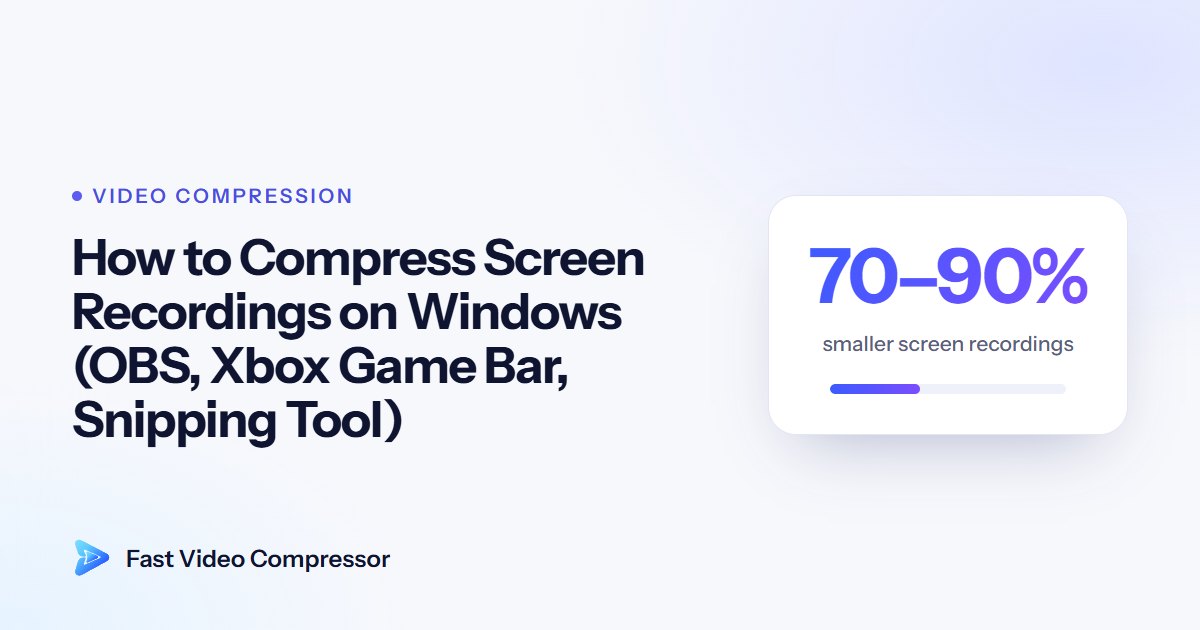
In a typical screen recording, most of the screen doesn't move. The taskbar, the window borders and the background stay the same for minutes. A good compressor stores those parts once and only updates what changes: the mouse, a scrolling page, a typed word.
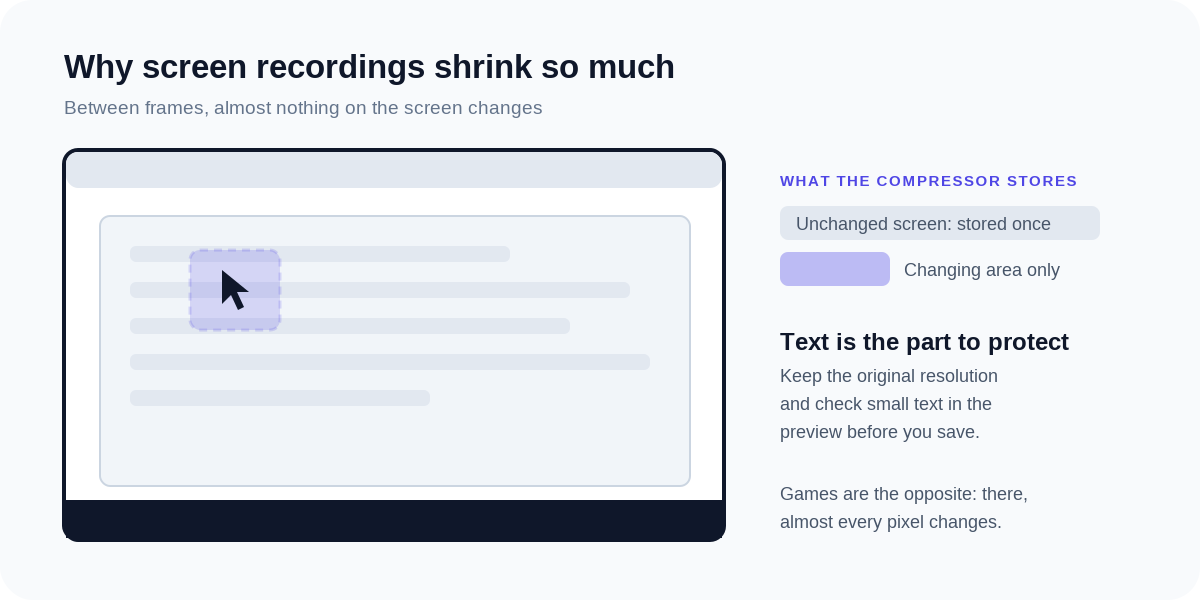
That's why screen recordings usually shrink more than any other kind of video, with no visible difference. How much depends on the bitrate your recorder used, so check the estimate before you compress.
The one thing to protect: text
Text is the hardest part of a screen recording to keep sharp. Lower the bitrate too much, or lower the resolution, and small text becomes blurry or unreadable.
- Keep the original resolution for tutorials, demos and bug reports, where people need to read the screen.
- Use Balanced, not Smallest File, when text matters.
- Use the preview to check a part with small text before you save.
How to compress a screen recording with Fast Video Compressor
Fast Video Compressor is free for Windows 11 and 10 and shows the estimated size before you start:
- Add your recording. Xbox Game Bar and Snipping Tool create MP4s, which the free edition supports (up to 2 GB). OBS can save MKV files; Pro supports MKV, or set OBS to record in MP4 (newer versions offer Hybrid MP4).
- Choose Balanced. It keeps text clean while still cutting the size a lot.
- Keep the Original resolution unless the video is going to a chat app.
- Check the estimate and compare. Look at the smallest text on screen.
- Click Start Compression.
 Recommended DownloadDownload Fast Video Compressor - Free for Windows 10 & 11Download free
Recommended settings by use
| What the recording is for | Goal | Resolution |
|---|---|---|
| Tutorial or course video | Balanced | Original |
| Bug report for a developer | Balanced | Original |
| Quick clip for Discord or WhatsApp | Smallest File | 720p |
| Archive of meetings or lectures | Smallest File | 720p or Original |
Record smaller in the first place
If you record often, you can also reduce the size at the source:
- In OBS, record at 30 fps instead of 60 for slides and desktop work. Movement still looks fine and the file is somewhat smaller. It won't halve the size, because frames that barely change are cheap to store anyway.
- Record only the window you need, not your whole screen, when possible.
- Stop the recording when you're done. Minutes of idle screen still add up.
Common questions
Why is my OBS recording so big?
OBS uses the bitrate in your settings, and the defaults are tuned for quality. Compressing afterwards is the easiest way to shrink it without changing how you record.
Will compression make my screen text blurry?
Not if you keep the original resolution and use Balanced. Use the side-by-side preview to check before you save.
How do I record my screen on Windows without extra software?
Use the Snipping Tool (switch it to video mode) or Xbox Game Bar (press Win + Alt + R). Both save MP4 files.
Can I compress an MKV recording from OBS?
Fast Video Compressor Pro opens MKV directly. With the free edition, first use File > Remux Recordings in OBS to turn the MKV into an MP4 without re-encoding. Newer versions of OBS (30.2 and later) can record Hybrid MP4, which stays recoverable after a crash like MKV. More in MP4 vs MKV vs MOV, and step by step in how to convert MKV to MP4.
Where does Xbox Game Bar save recordings?
In your Videos > Captures folder.
In short
Screen recordings shrink more than almost any other video with the right settings. Keep the original resolution and use Balanced so text stays readable. For a strict size target, read how to compress a 1 GB video to 100 MB.