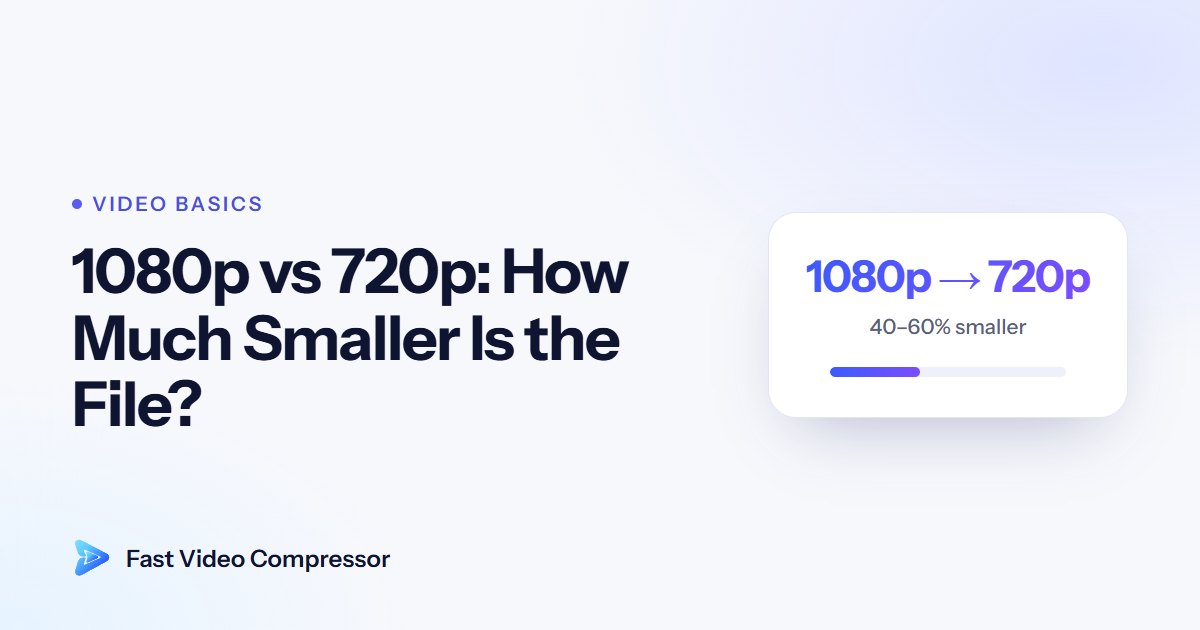
When people want a smaller video, they usually think about "compression settings". But one of the most effective tools is much simpler: lower the resolution. Here's how much it actually saves, and when you'll notice the difference.
Resolutions compared
| Resolution | Pixels per frame | Compared with 1080p |
|---|---|---|
| 4K (3840×2160) | 8.3 million | 4× more |
| 1440p (2560×1440) | 3.7 million | 1.8× more |
| 1080p (1920×1080) | 2.1 million | — |
| 720p (1280×720) | 0.9 million | 56% fewer |
| 480p (854×480) | 0.4 million | 80% fewer |
Fewer pixels means less information to store each second, so the video can use a lower bitrate and still look clean.
How much smaller does the file get?
We measured it. We took 15-second clips from two freely licensed films, Blender's live-action *Tears of Steel* and the animated *Big Buck Bunny*, and compressed each at 1080p, 720p and 480p with exactly the same H.264 quality setting (x264, CRF 23).
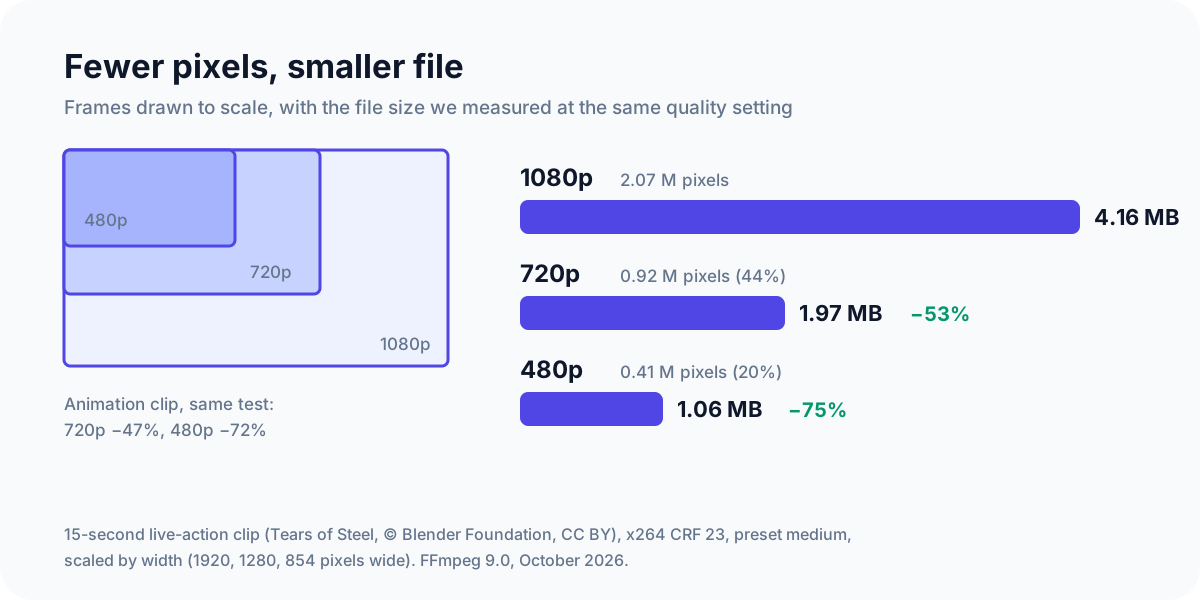
| Clip | 1080p | 720p | 480p |
|---|---|---|---|
| Live action | 4.16 MB | 1.97 MB (53% smaller) | 1.06 MB (75% smaller) |
| Animation | 2.72 MB | 1.44 MB (47% smaller) | 0.77 MB (72% smaller) |
So in practice:
- 1080p → 720p: about half the size. Our two clips came out 47% and 53% smaller.
- 720p → 480p: a bit under half again. Both clips were 46% smaller than their 720p versions.
- 4K → 1080p: we didn't test 4K here, but with four times the pixels, expect roughly 60–75% smaller.
The saving is a little less than the drop in pixels (720p has 56% fewer), because encoders work more efficiently on larger frames. These savings stack with the rest of compression: a phone video that goes from 4K to 1080p and gets a sensible bitrate can easily end up 90% smaller.
When 720p is good enough
- Phone screens. On a 6-inch screen, most people can't tell 720p from 1080p.
- Chat apps and email. WhatsApp, Discord and email previews show video in a small window.
- Talking heads, lectures and meetings. There's little fine detail to lose.
- Long videos with a strict size limit. When there isn't much room, 720p keeps the picture clean instead of blocky.
When to keep 1080p or 4K
- Watching on a TV or large monitor.
- Footage with lots of fine detail, like landscapes or text on screen.
- Videos you'll edit later, or use as your only copy.
- Uploading to YouTube, where a higher upload resolution gets better playback quality.
The key idea: resolution vs bitrate
If your target size is small, you have two choices:
- Keep 1080p and give each pixel very little data. The result looks blocky and smeared.
- Drop to 720p and give each pixel enough data. The result looks clean, just slightly softer.
The second almost always looks better. That's why, for tight size limits, lowering the resolution is the smart move. Our guide to compressing a video for email shows how far each resolution goes in an 18 MB attachment.
How to change resolution in Fast Video Compressor
In Fast Video Compressor (free for Windows 11 and 10), you can keep the Original resolution or choose 1080p, 720p or 480p. The estimated output size updates as you change it, so you can see roughly how much each step saves before you compress.

Use the side-by-side preview to check the result at a busy moment in your video. In HandBrake, the same setting is the resolution limit on the Dimensions tab; see how to compress a video with HandBrake.
Recommended DownloadDownload Fast Video Compressor - Free for Windows 10 & 11Download freeCommon questions
Does 720p look bad?
No. On phones, laptops and in chat apps, a well-compressed 720p video looks sharp. It only looks soft next to 1080p on a large screen.
Does lowering the resolution reduce quality?
It reduces detail, but it often improves how the video looks at a small file size, because each pixel gets more data.
How do I check a video's resolution on Windows?
Right-click the file, choose Properties, then the Details tab. Frame width and Frame height show the resolution, for example 1920 × 1080.
Is 480p ever a good idea?
Yes, for long videos that must fit a strict size limit, or videos only watched on phones. It's too soft for TVs and large monitors.
Is 4K worth keeping?
For your original copy, yes. For sharing, 1080p is usually plenty, and it can make the file 60–75% smaller.
In short
720p cut the file by about half in our tests, and on small screens it looks nearly identical. When a size limit is tight, lower the resolution before you squeeze the bitrate. To learn the other half of the equation, read what video bitrate is.
Sources and method
- Our test: 15-second clips of *Tears of Steel* and *Big Buck Bunny* (© Blender Foundation, CC BY), compressed from a lossless copy with FFmpeg 9.0, x264 preset medium, CRF 23, scaled to 1920, 1280 and 854 pixels wide. October 2026. Two short clips are an indication, not a rule; your savings depend on your video.